
BioFrontiers Storage Guide
Last updated: March 26, 2026
Overview
Group Share - Shared among all members of a lab's security group. Use the group name (e.g., dexters-lab) to connect. Authenticate with your Identikey and password.
Personal Share - Private drive accessible only to you. Your drive name is your Identikey (e.g., rabu3145). Authenticate with your Identikey and password.
Requirements
The following are required before connecting, regardless of operating system:
- A valid CU Campus Identikey and password
- Access to the campus internal network or an active CU VPN connection
- Windows 10/11, or macOS (any currently supported version), or a supported Linux distribution
Need Help?
If you have trouble connecting, please contact BioFrontiers IT:
- Email: bit-help@colorado.edu
Share Paths
Group Share: \\biofstorage.colorado.edu\group-share-name
Personal Share: \\biofstorage.colorado.edu\your-identikey
Steps to Map a Network Drive
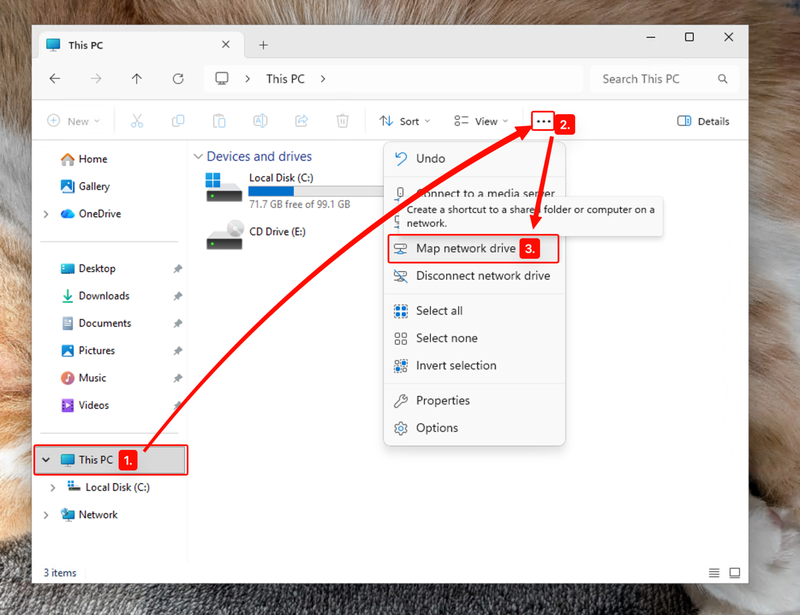
- Open File Explorer and click This PC in the left sidebar.
- In the ribbon at the top, click the ellipsis (...)
- Click Map Network Drive.
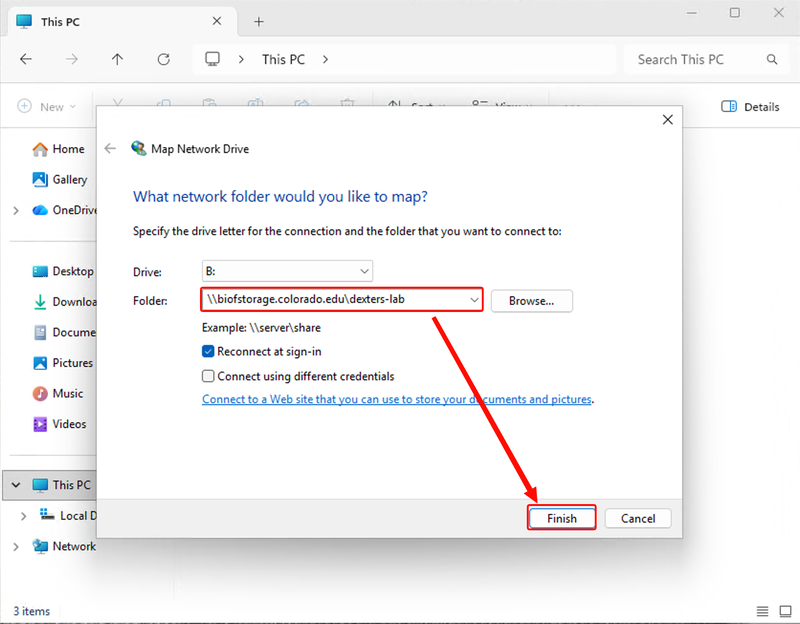
4. In the Map Network Drive dialog, enter the appropriate path from above into the Folder field.
5. Click Finish. When prompted, enter your Identikey username and password.
Share Paths
Group Share smb://biofstorage.colorado.edu/group-share-name
Personal Share smb://biofstorage.colorado.edu/your-identikey
Steps to Connect to Server
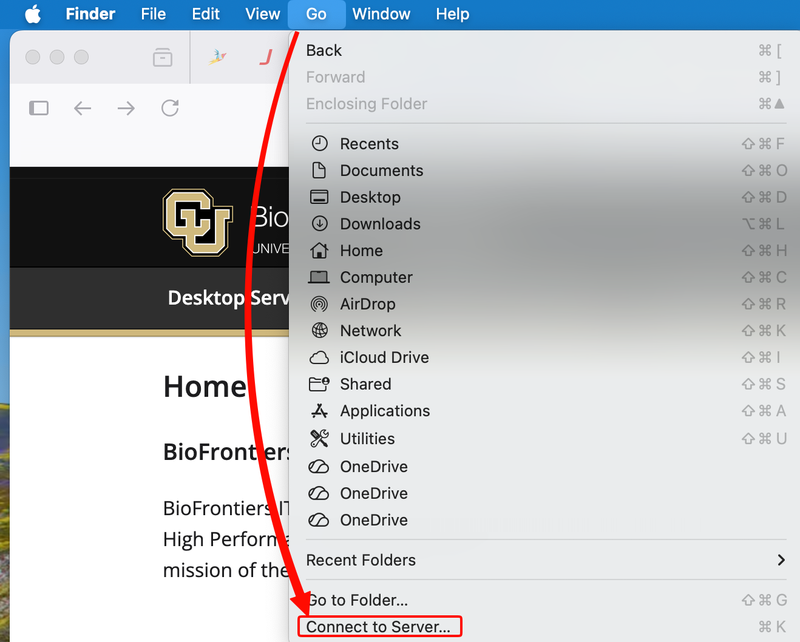
- In the menu bar, click Go → Connect to Server…
- In the Connect to Server dialog, enter the appropriate path from above.
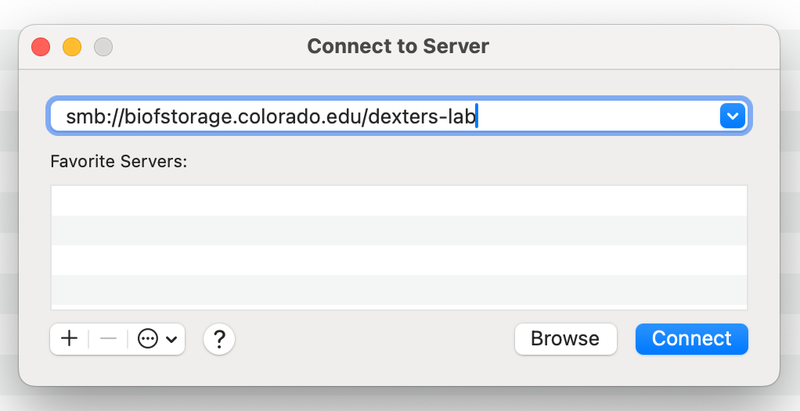
- Click Connect. If prompted to confirm the server, click Connect again.
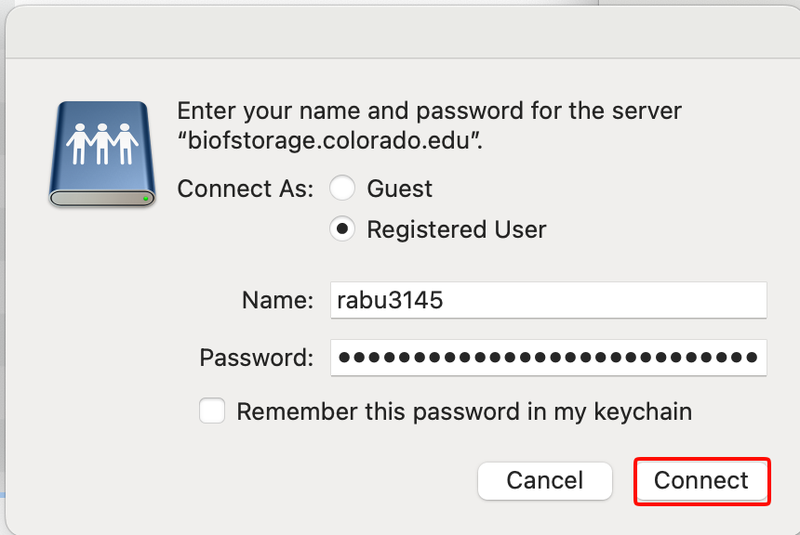
- Enter your Identikey username and password in the credentials dialog, then click Connect.
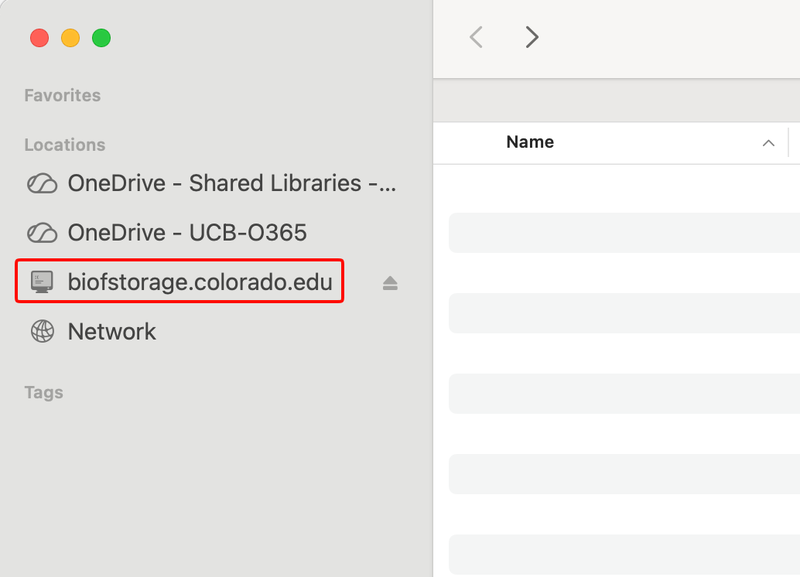
Your share will appear as a folder under Locations in the Finder sidebar.
Note: In most cases your Identikey is entered as-is. However, if your device has been used off-campus or changed network locations, you may need to prefix it with AD\ to force Active Directory authentication.
Example: smb://AD\your-identikey@biofstorage.colorado.edu/your-identikey