General Printing Help
Last updated: September 15, 2026
Some additional guides on leveraging the full extent of BIT printers.
Device Location 	IP Address
1st Floor A 	        172.21.16.7
2nd Floor A 	        172.21.17.8
2nd Floor D 	        172.21.21.8
3rd Floor A 	        172.21.18.8
3rd Floor D 	        172.21.22.8
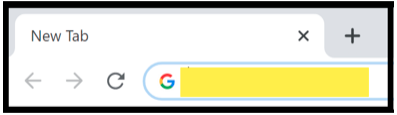
4th Floor B 172.21.19.8- Open a web browser of your choice. For this example, we used Google Chrome. At the top of the browser in the URL, enter the IP address( found above) of the printer you wish to add the user’s email address to.
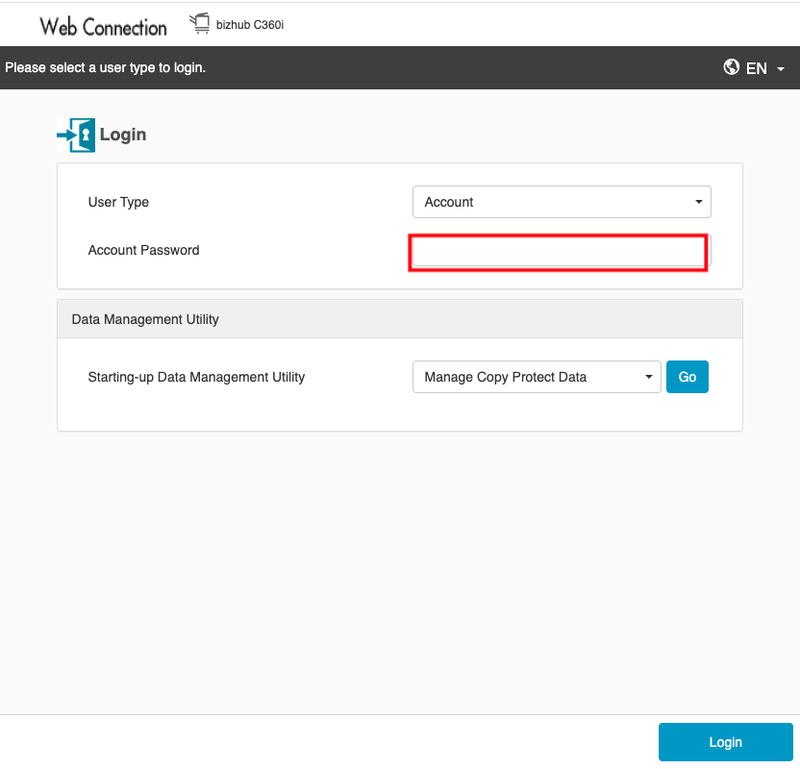
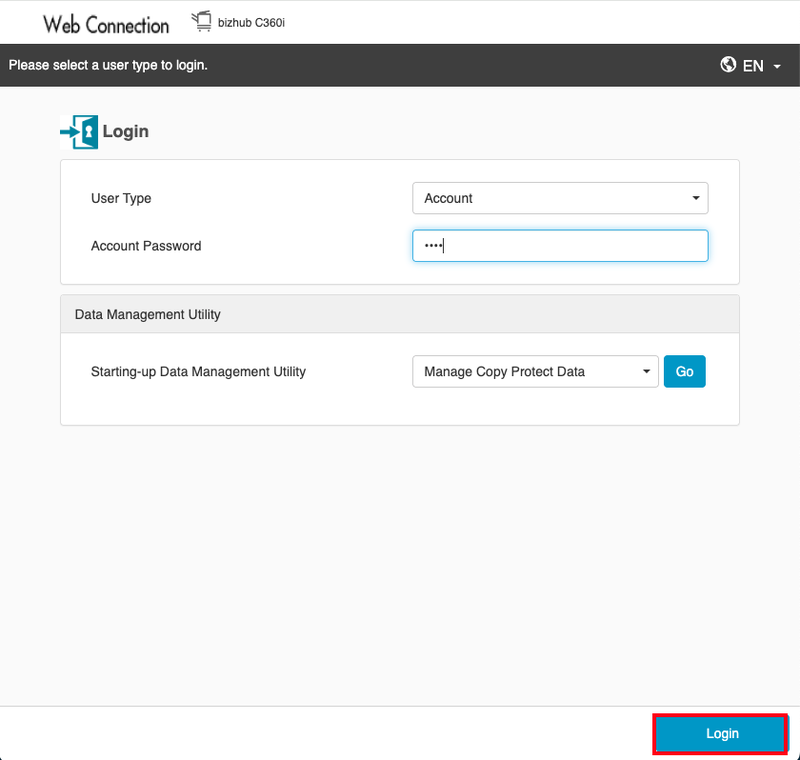
2. You will be redirected to the following page. Enter the Account Password. This is your 4- digit print/copy code and click Login.
3. On this page, you will navigate to the left and click Store Address.
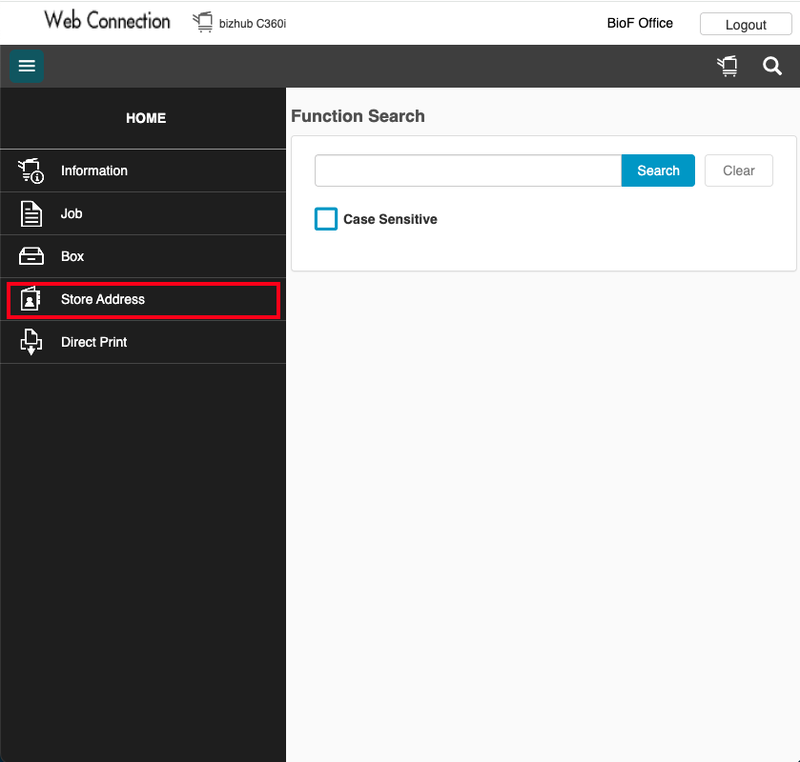
4. In the second pop-out menu, click Address Book.
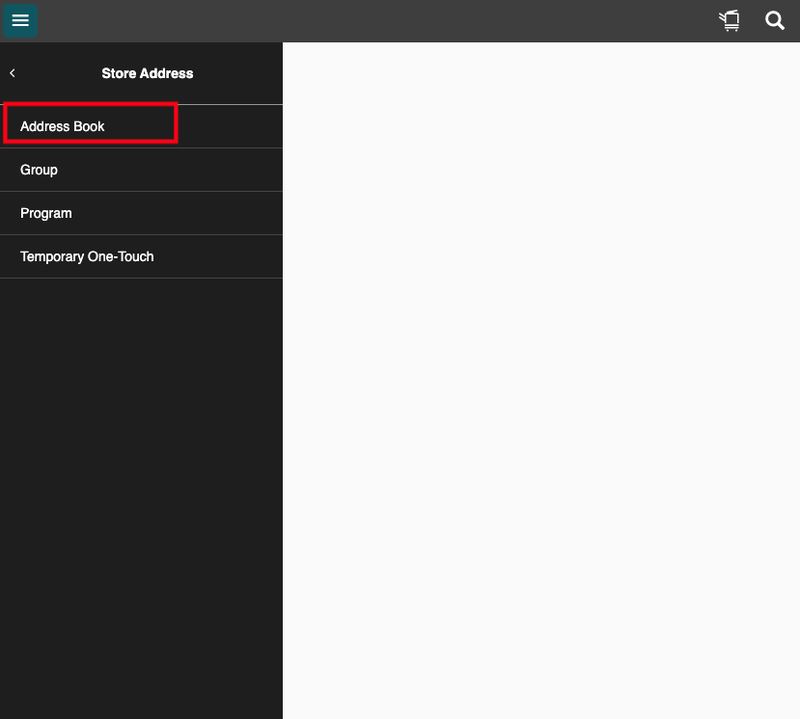
5. On the following page, click New Registration.
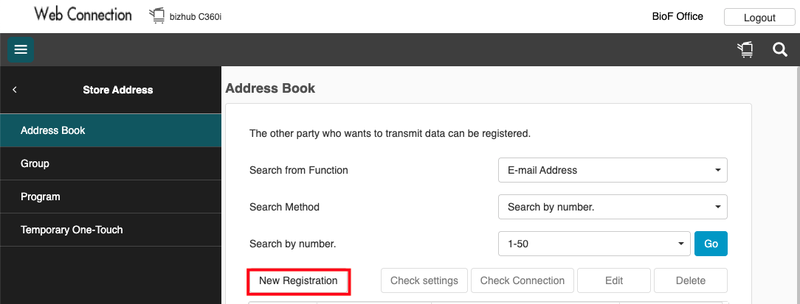
6. You will be directed to a page to search for the person. Enter the user’s name
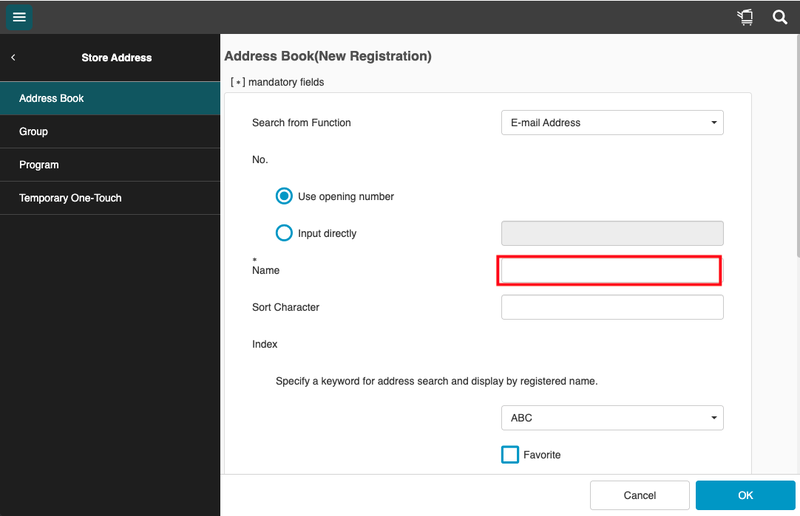
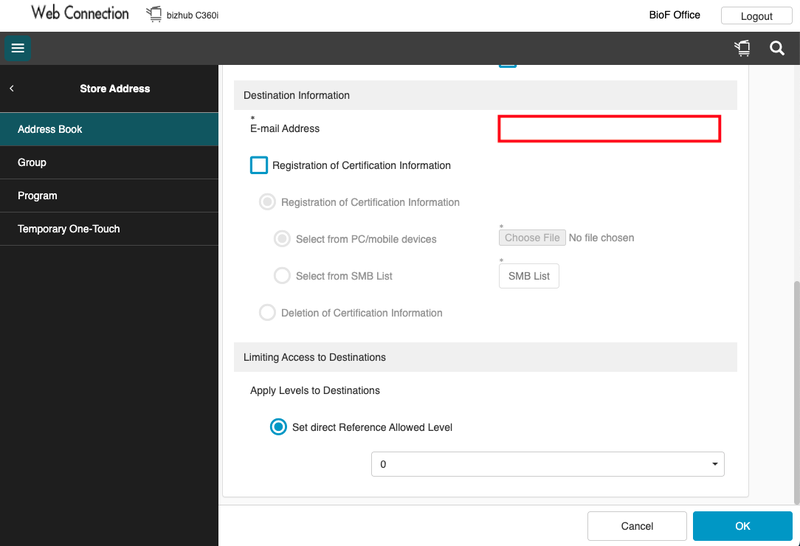
7. Scroll down and enter email address and click OK
Direct Print
NOTE: Before beginning, please ensue you are connected to the network via UCB Wireless or Ethernet connection.
1. Select the IP Address for the printer you want to print to(found at top of page). Then, open a browser window, type in the IP Address in the address bar, and hit Enter
2. You should now see a Konica Minolta login page. Select Account. In the Account Password field, enter your copy code.
Then, select Login.
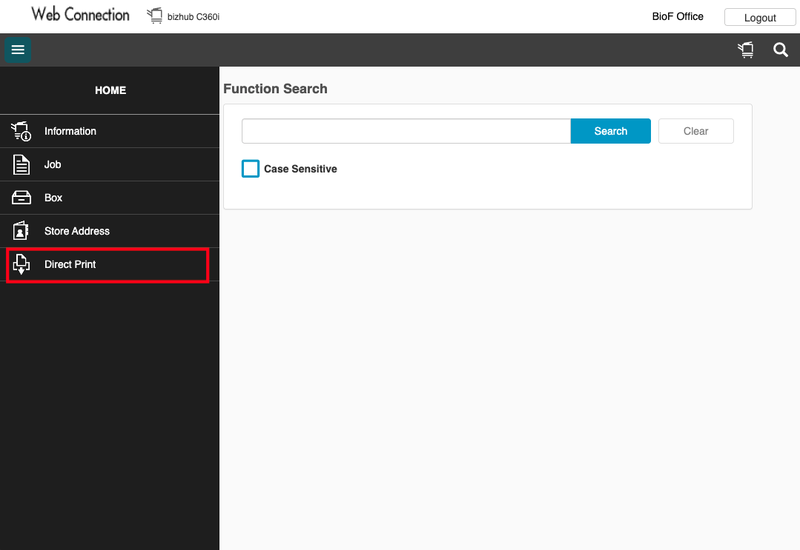
3. On the left-hand side, select Direct Print
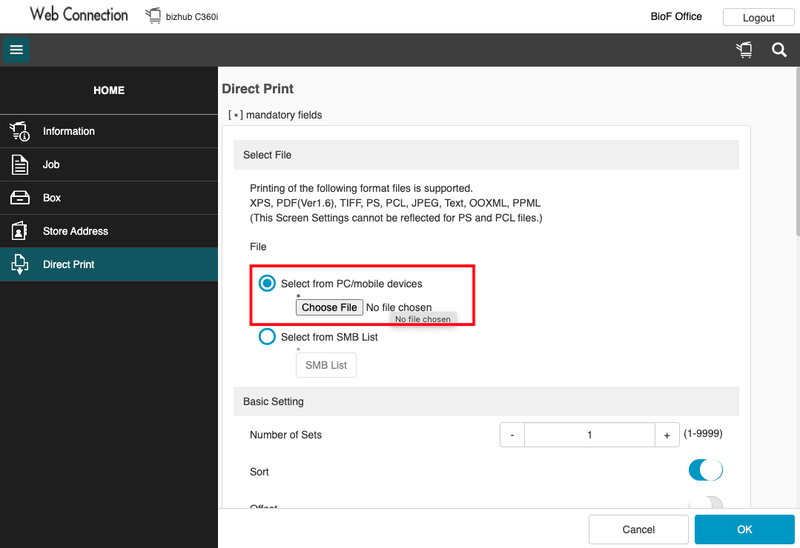
4. Select Select from PC then select Choose File. Choose the file you'd like to print.
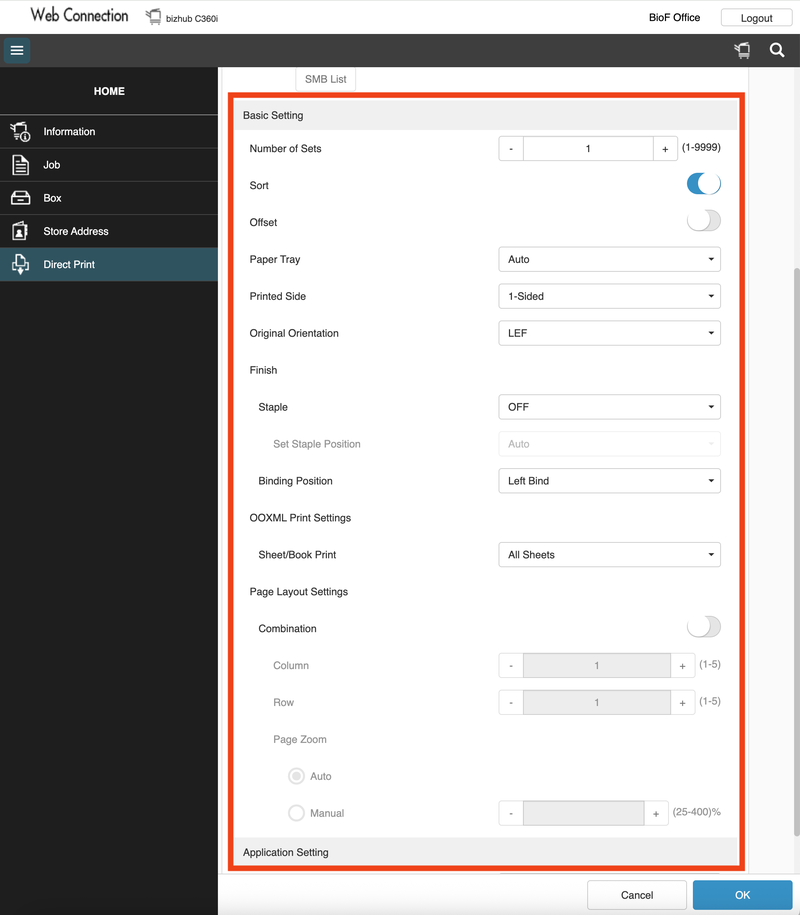
5. Then, select your desired settings in the Basic Settings section.
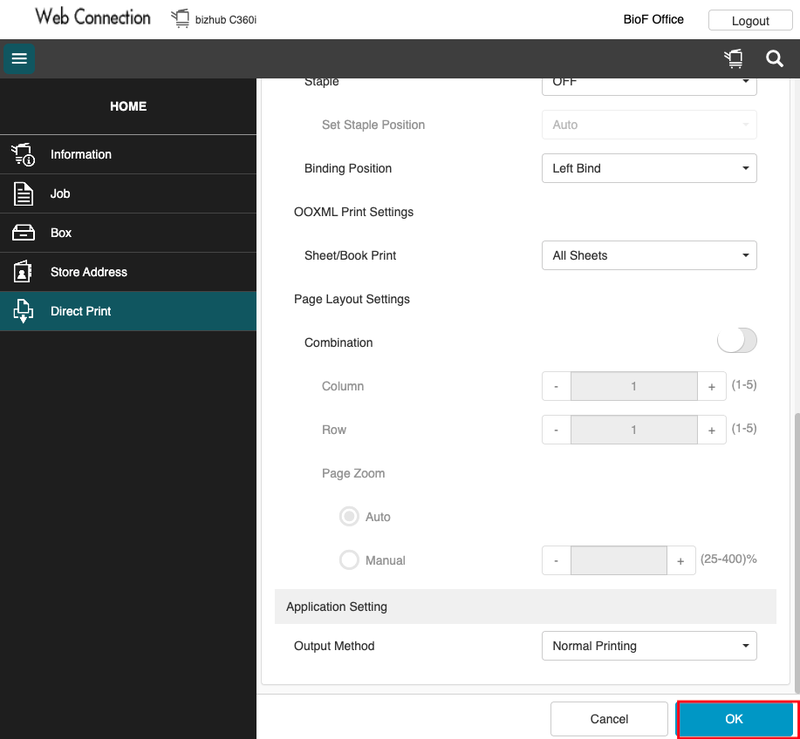
6. Once you've uploaded the file and selected your desired settings, select OK in the bottom right corner of the screen.
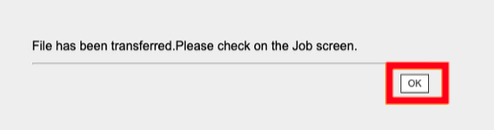
Your file should be at the printer. If you need to print another file, select OK and return to Step 4.