MacOS
Last updated: June 15, 2026
Please find the JSCBB IP address below
Device Location 	IP Address
1st Floor A 	        172.21.16.7
2nd Floor A 	        172.21.17.8
2nd Floor D 	        172.21.21.8
3rd Floor A 	        172.21.18.8
3rd Floor D 	        172.21.22.8
4th Floor B 172.21.19.8NOTE: Before beginning, please ensure you are connected to the network via CU Secure or building Ethernet connection.
Download the printer driver below for the version of macOS you are running.
If you need to check the OS version for your computer click on the Apple Icon in the menu bar and choose About This Mac.
The latest version of the driver should work with Sonoma/Sequoia/Tahoe - Version 14.x-26.x IT6PSMACOS_536AMU
Version 13.x C300i_C360i_v3.1.3A_h1g4gRm
Version 12.x C300i_C360i_C4050i_C3300i_C4000i_Series_C750i__v3.1.3A_Letter
Version 11.x C750i_C650i_C360i_C287i_C286i_C4050i_C4000i_Series_C3320i_PS_PCL_FAX_v3.1.12.0
For the Latest driver IT6PSMACOS_536AMU
Please note after downloading:
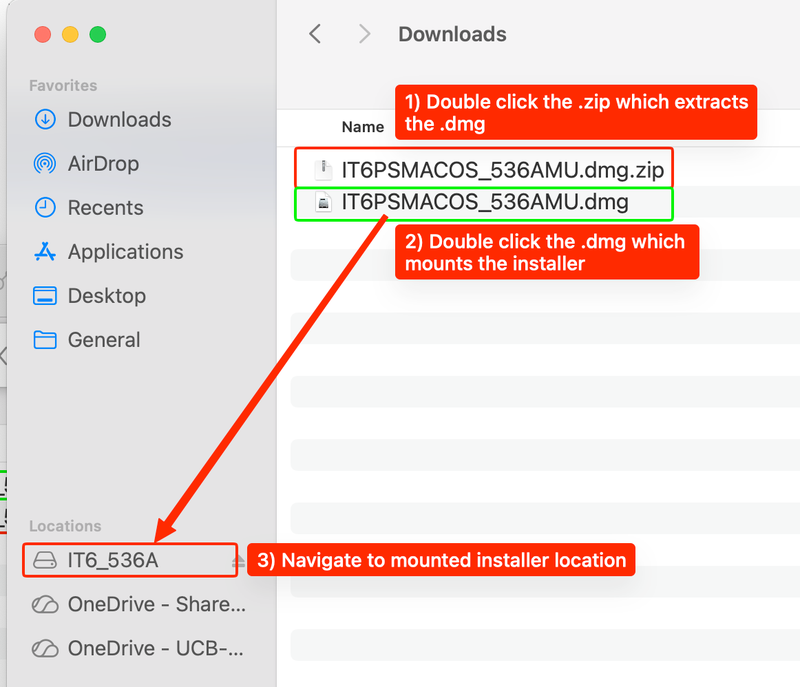

- In a Finder window under Downloads, you will find the driver and double-click on it.
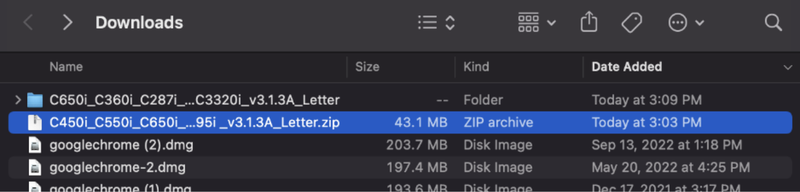
2. Click on the package once it has unzipped.

3. Click Continue on the Introduction window.
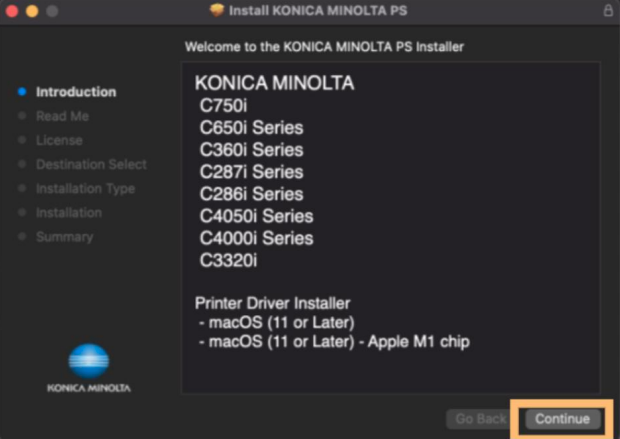
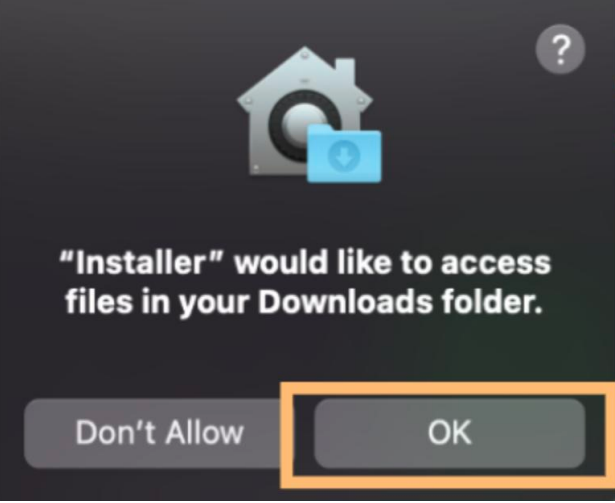
4. When you click on Continue on the Read Me screen, a window will pop up, click OK
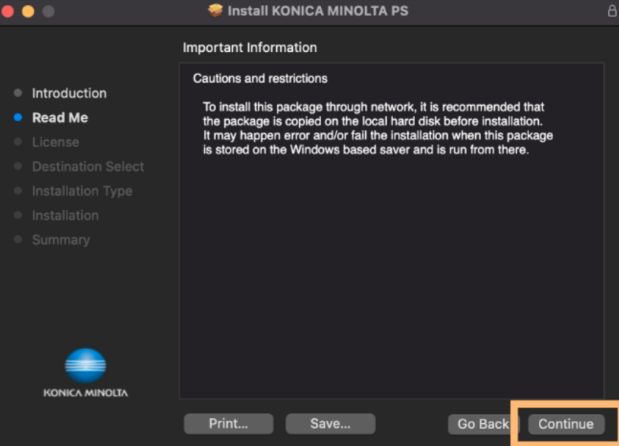
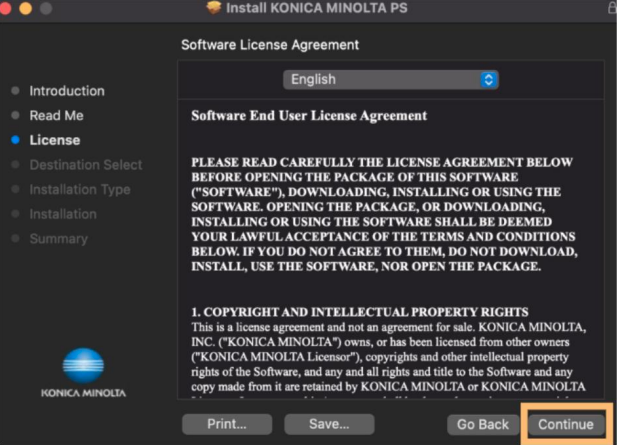
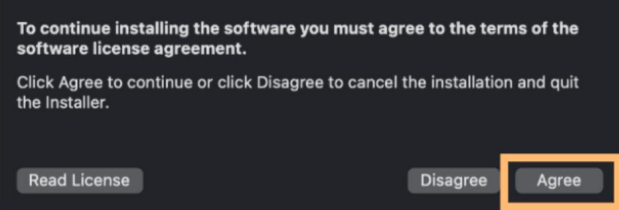
5. Click Continue on the License screen. It will then prompt you to agree to the terms of the software license agreement. Click Agree.
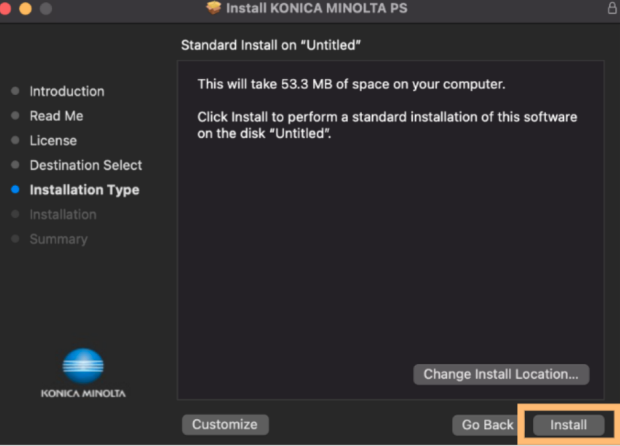
6. Select Install on the Installation page.
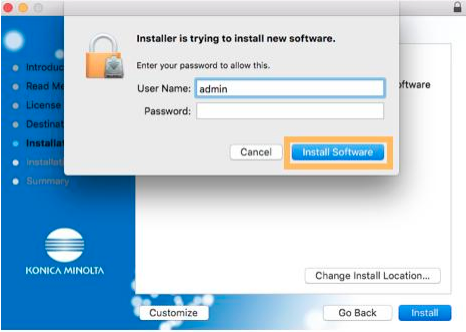
7. You will then be prompted for Admin credentials. After entering the appropriate credentials, select Install Software.
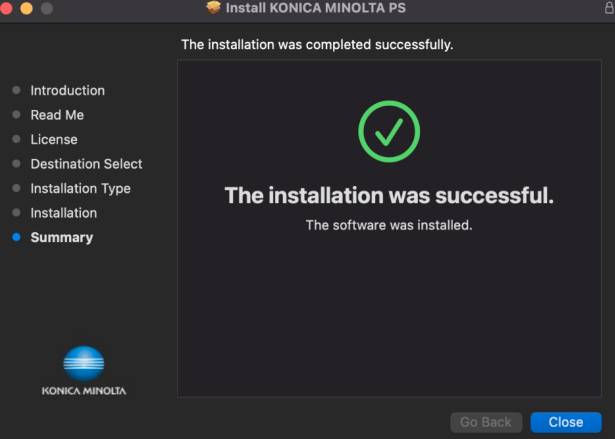
8. Afterwards, installation will begin. Once it is complete, you will screen like the one below. Then, select Close.
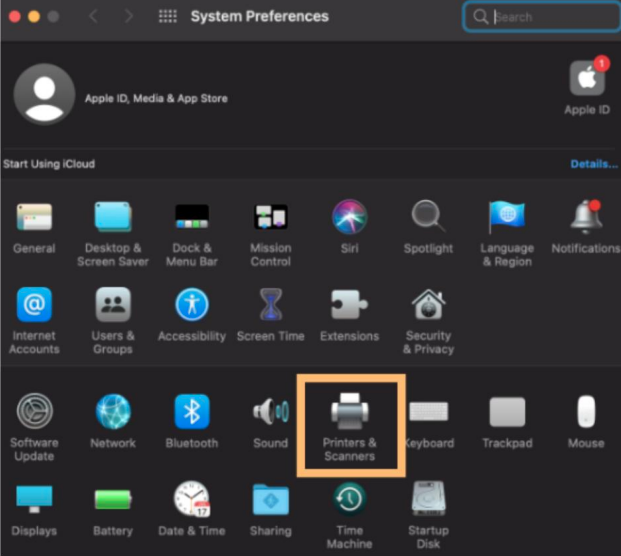
9. To add the printer to your system open System Preferences and select Printers & Scanners.
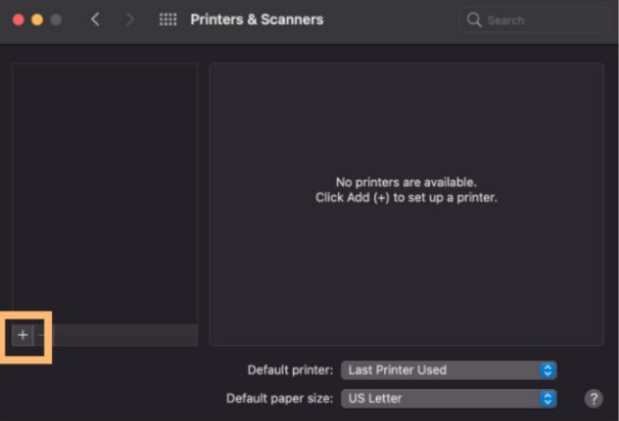
10. If the lock in the bottom left corner of this window is closed, click it to be asked to authenticate using Administrator credentials. Then, select the '+' in the bottom left of the screen
11. This will open a new window. Be sure to select the IP tab.
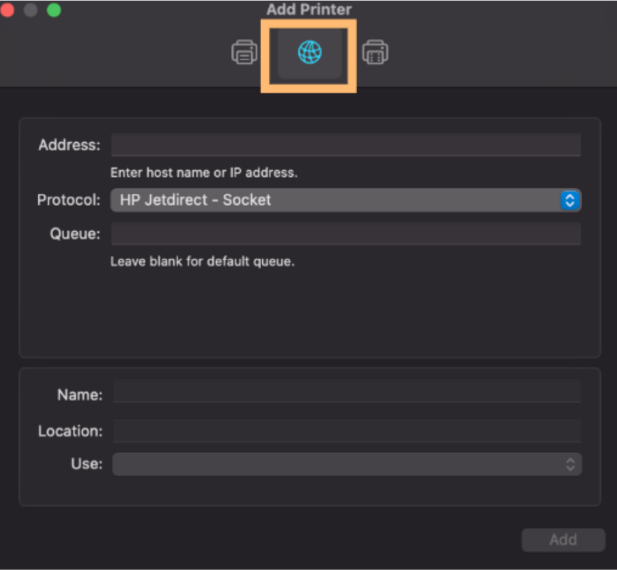
12. In this tab, select the HP Jetdirect - Socket option next to Protocol.
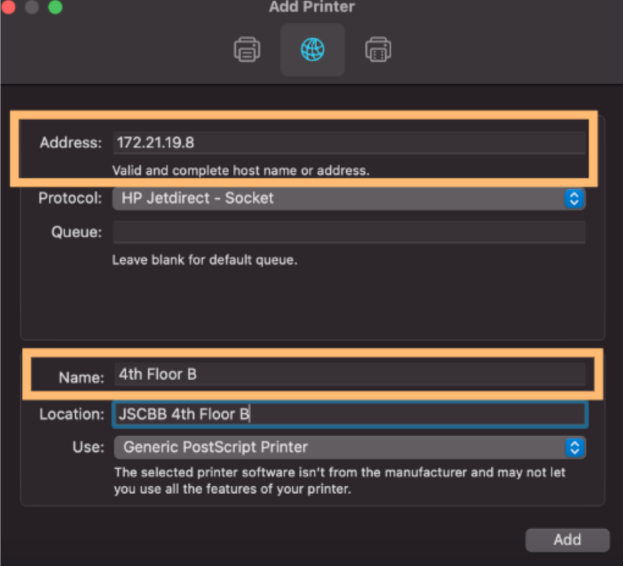
13. Input the IP Address of the device that you would like to use in the Address field and add a name for that device in the Name field. Using the standard from the table at the top of this page will help identify which device you are using.
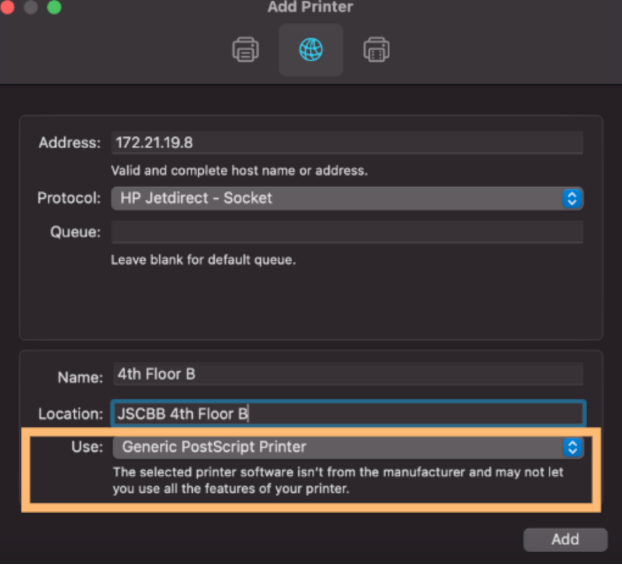
14. In the Use field, select the pull down menu and select Select Printer Software. This will then open a window labeled Printer Software.
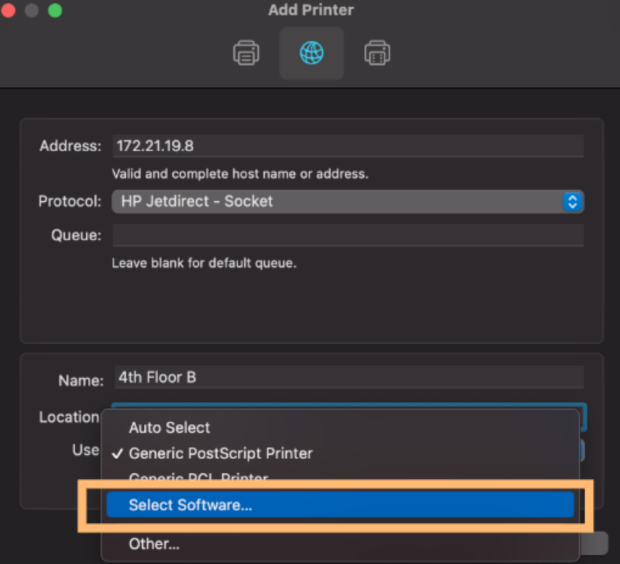
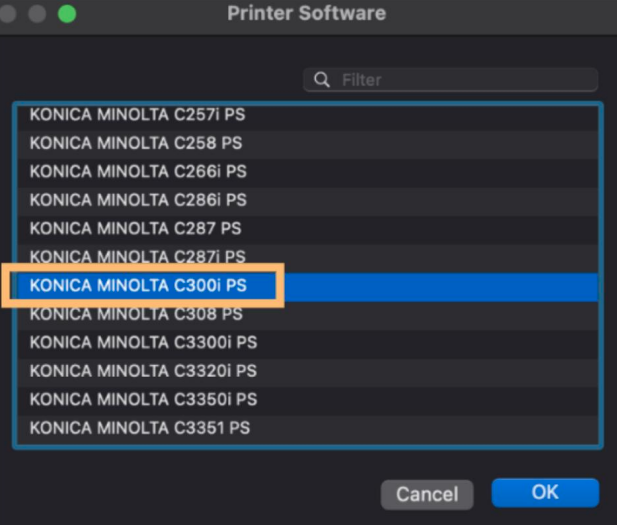
NOTE: The 1st Floor A Wing printer should use Konica Minolta C360i. All other devices in the list above are Konica Minolta C300i. Choose the appropriate model and click OK.
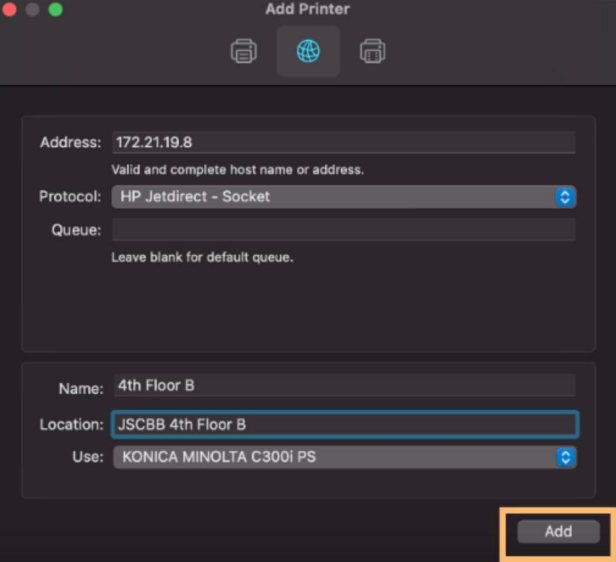
15. The printer window should now look something like this: Select Add.
16. In the final configuration details section the Finisher needs to be chosen as FS-536. NOTE: Do NOT Choose "SECURE PRINT ONLY". Click OK.

17. The device should appear in your printer window as seen below:
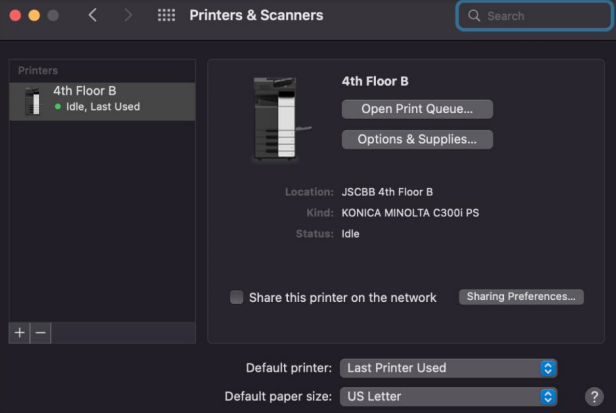
All printers in the building use Account Tracking to control the printing output based on configuration. This is in the form of a four digit code that will be assigned to a speed type. These codes can be obtained by contacting your Lab PI or someone in your department.
18. To configure the printer to print using your code you need to add a preset as seen below: From a Microsoft Word print window, choose the Output Method from the settings pulldown list.
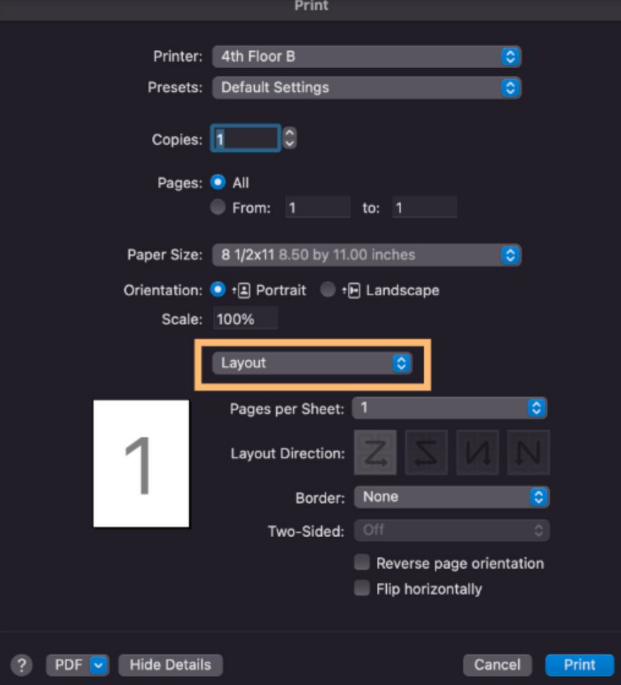
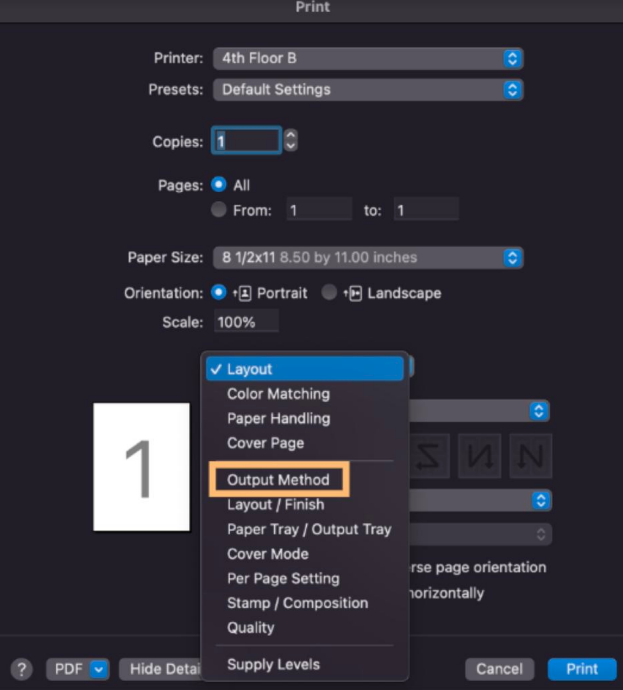
19. In this window check the Account Track box.
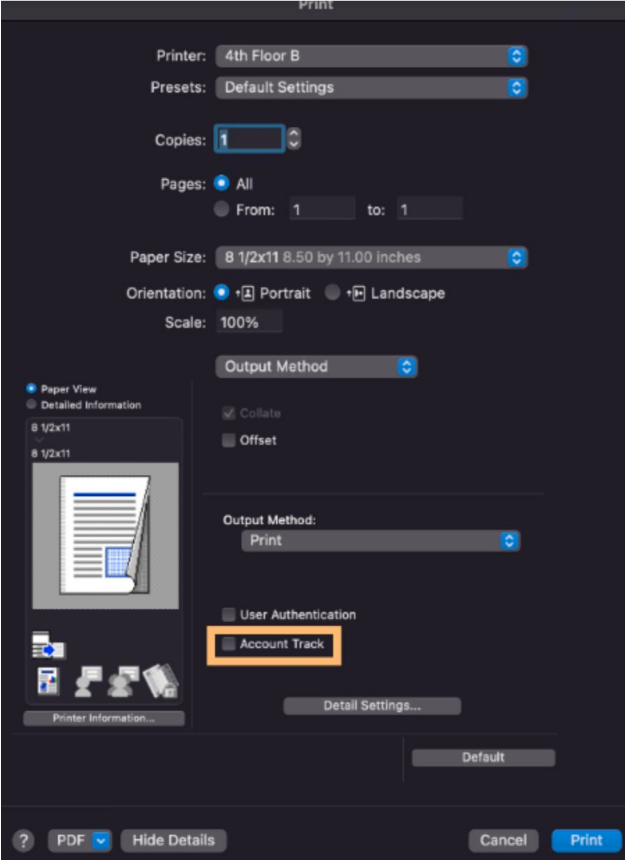
20. Then enter your 4-digit copy/print code in the Password blank. Select Save Settings, then select OK.
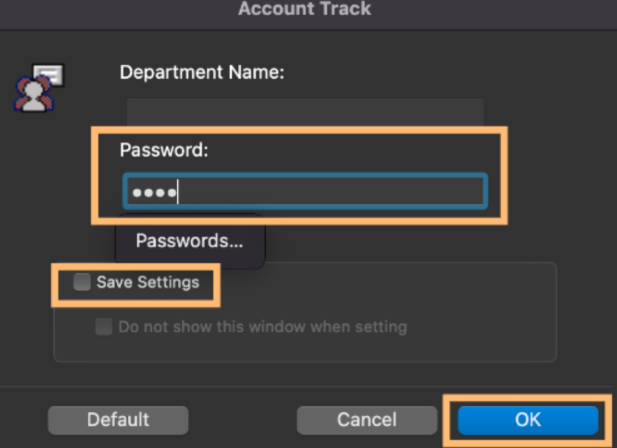
21. Back at the main print window, save these settings as a Preset. In the drop down menu next to Presets, select Save Current Settings as Preset.
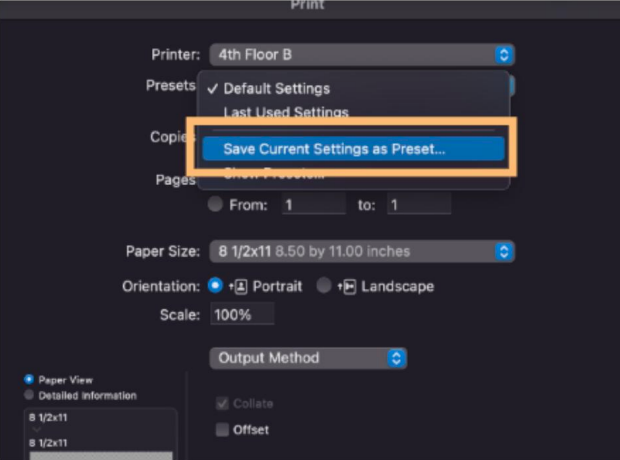
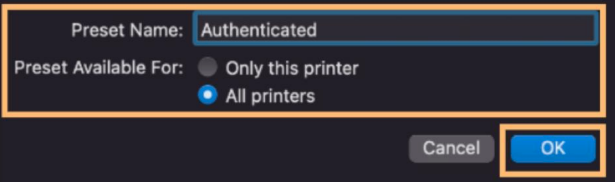
22. It's helpful to be descriptive in this instance, as seen below. Select the preset to be available for All Printers in case you choose to add more building printers in the future. Select OK, then print to verify that your settings are working properly.
NOTE: You may need to select the preset you created when printing from different applications.
Secure Print is a printing feature that holds a document in a protected digital queue instead of printing it immediately. The document is only released and printed once the user physically arrives at the printer and authenticates.
IMPORTANT: You will need your JSCBB print/copy code for this procedure. If you do not know your print/copy code, please contact your PI or Angela Janacek.
NOTE: We are using Microsoft Word to serve as an example for this tutorial. You can utilize Secure Print from any application by selecting Output Method from the print menu.
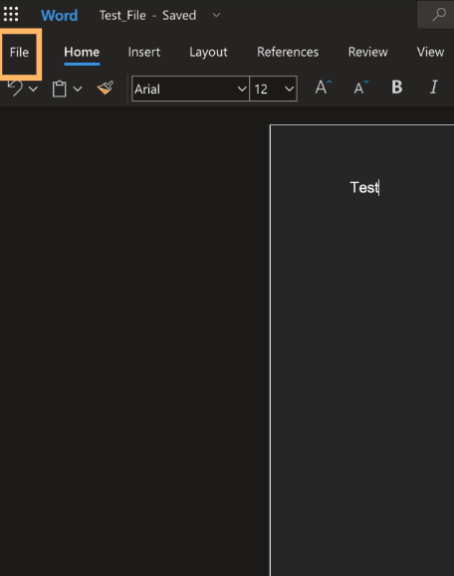
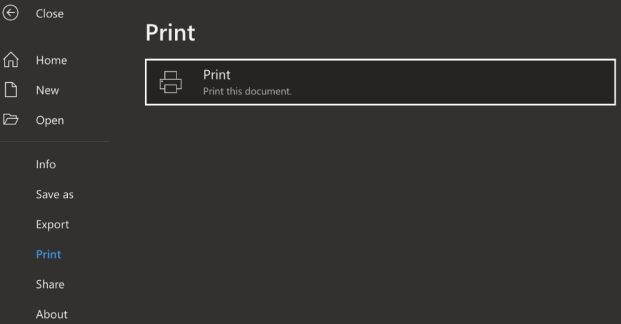
- Click File at the top of the page. Select Print from the dropdown menu.
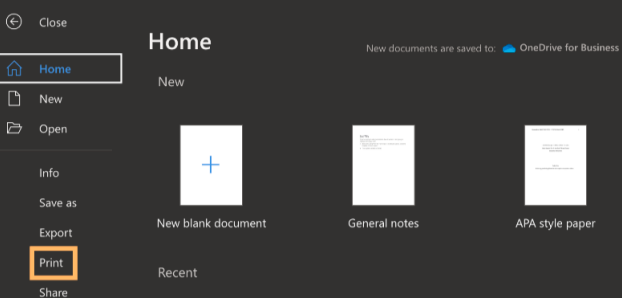
2. Then click Print.
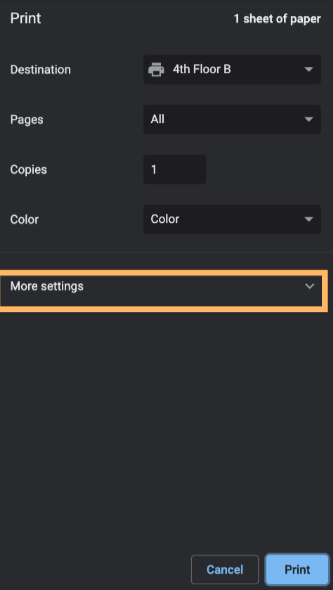
3.From the pop-up window, select More Settings.
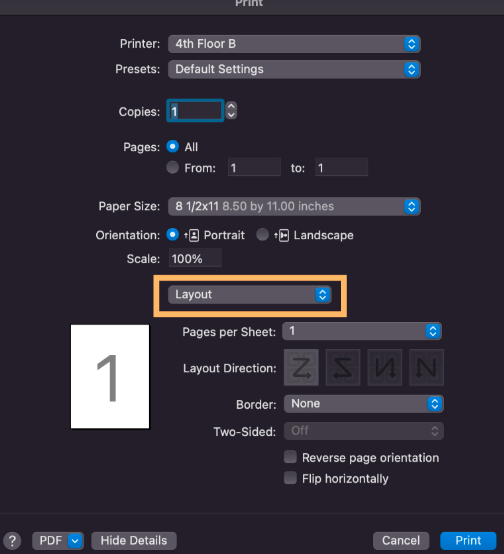
4. Scroll to the bottom of the pop-up window and select "Print using system dialog..."

5. Click on the box that says Layout and select the Output Method option.
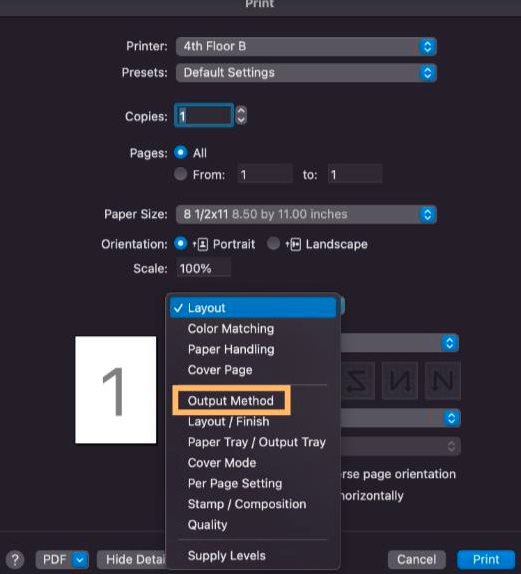
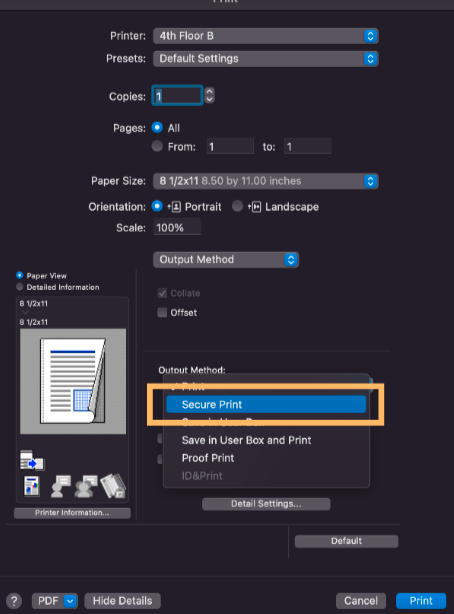
6. Near the bottom of the screen, select Secure Print from the Output Method menu.
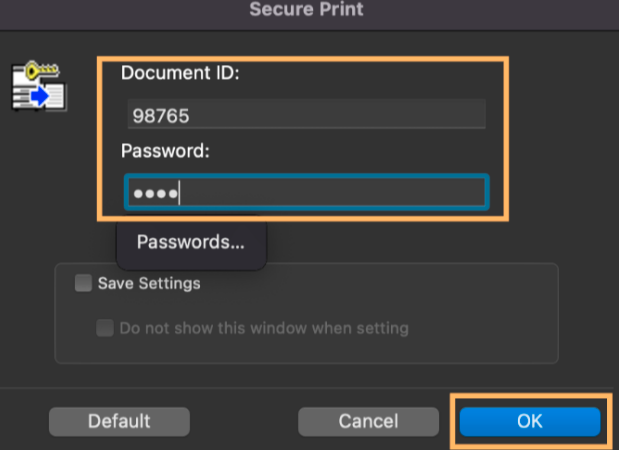
7. Choose a 5-digit code to use as the Document ID. It cannot be 12345. The Password has to be 4 digits, you can use whatever you'd like. Check the box next to Save Settings if you would like to keep the same password for all future documents. Click OK.
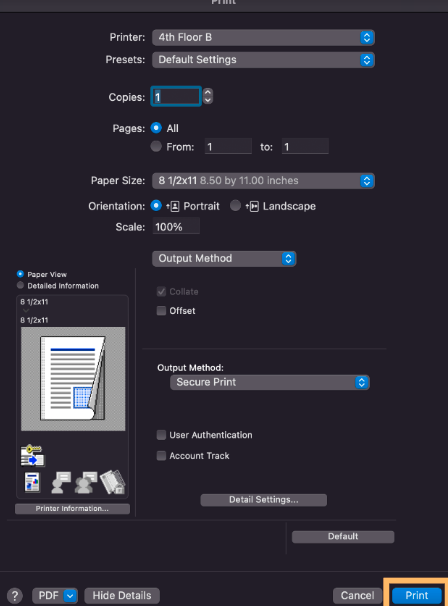
8. Click Print.
9. Now, head to the printer you were printing to. Enter your JSCBB print/copy code. If you do not know what your print/copy code is, please contact your PI or Angela Janacek

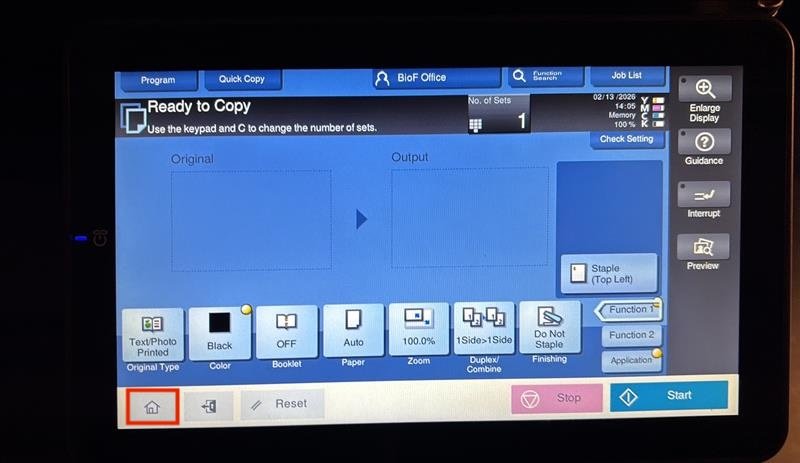
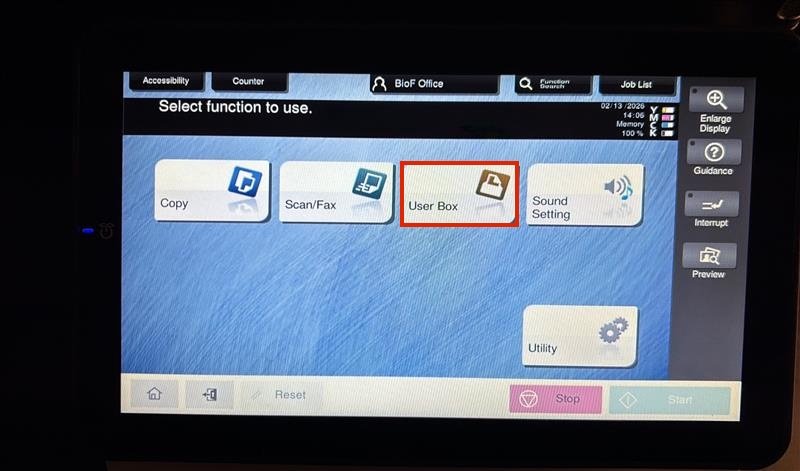
10. Hit the Home button.
11. Click on User Box
12. Click on System.
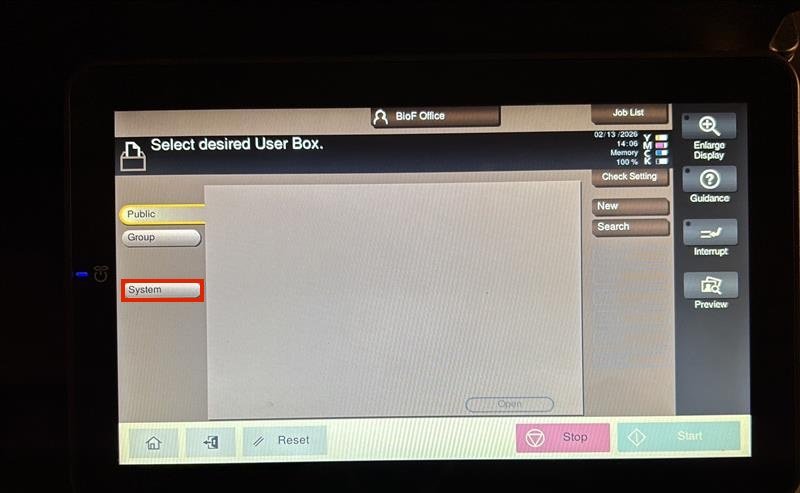
12. Click on Secure Print.

Here, you will find a screen to enter your Document ID and the Password you created in the previous steps.
13. First, enter your 5-digit Document ID.
14. Then enter your Password. NOTE: Make sure to click on the word "Password" in order to enter any digits.
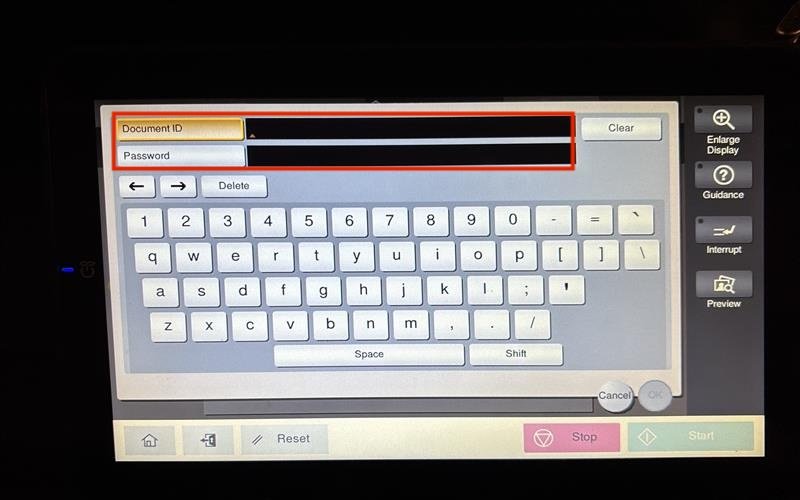
15. Once you have both entered, press OK located in the bottom right corner of the screen.

On this next screen you will find the document that you are printing.
16. Press Select All or the document you would like to print
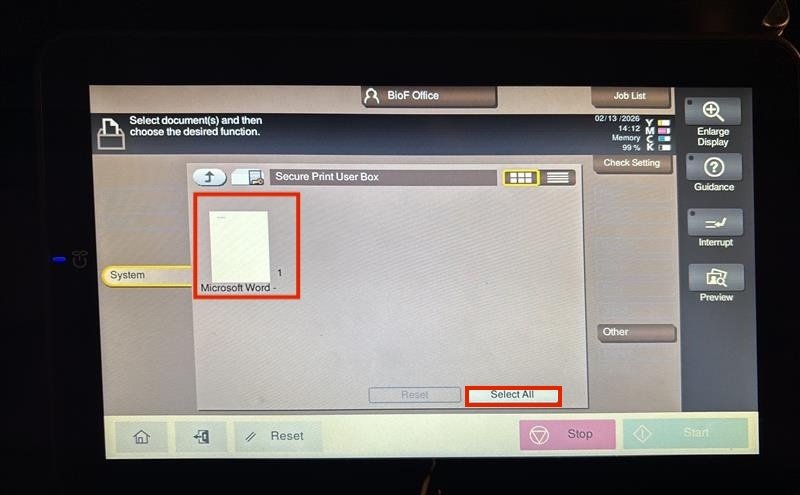
This will highlight the document that will be securely printed:
17. Click Print located on the right side of the screen.

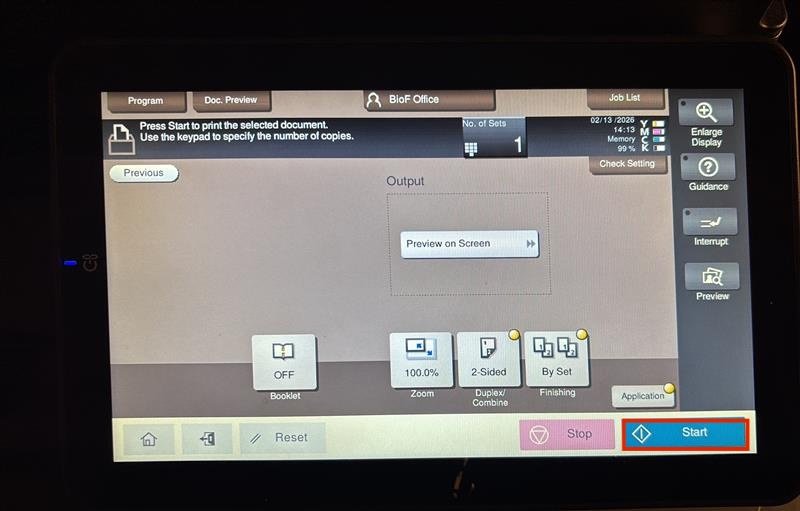
18. Click Start on the right bottom corner to start printing your document. Pressing start will bring you to this screen and your document will begin printing.