Windows
Last updated: September 15, 2026
Please find the JSCBB IP address below
Device Location 	IP Address
1st Floor A 	        172.21.16.7
2nd Floor A 	        172.21.17.8
2nd Floor D 	        172.21.21.8
3rd Floor A 	        172.21.18.8
3rd Floor D 	        172.21.22.8
4th Floor B 172.21.19.8Driver for Windows 11:
NOTE: Before beginning, please ensure you are connected to the network via CU Secure or building Ethernet connection.
- Please begin by downloading the printer driver above.
- You can access the driver by opening the downloaded .zip file within File Explorer and opening the Downloads folder
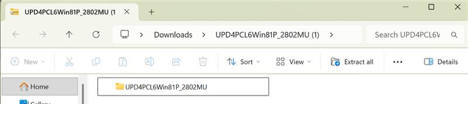
3. You will need to extract the file. Click on Extract All.
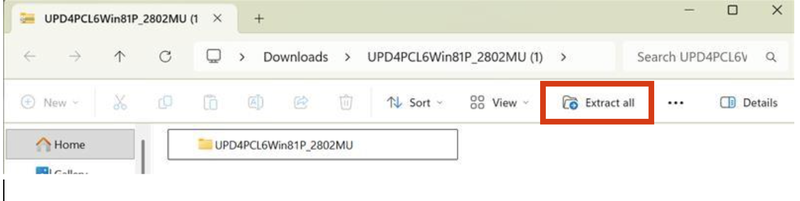
4. A window will pop up asking the destination of the file, the default will be fine. Click Extract

5. A new File Explorer window will open with the extracted files. Open the file and then Double-click on Setup64

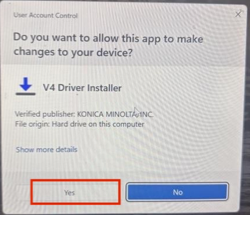
6. You will need to allow the installation window to make changes to your device. Click Yes.
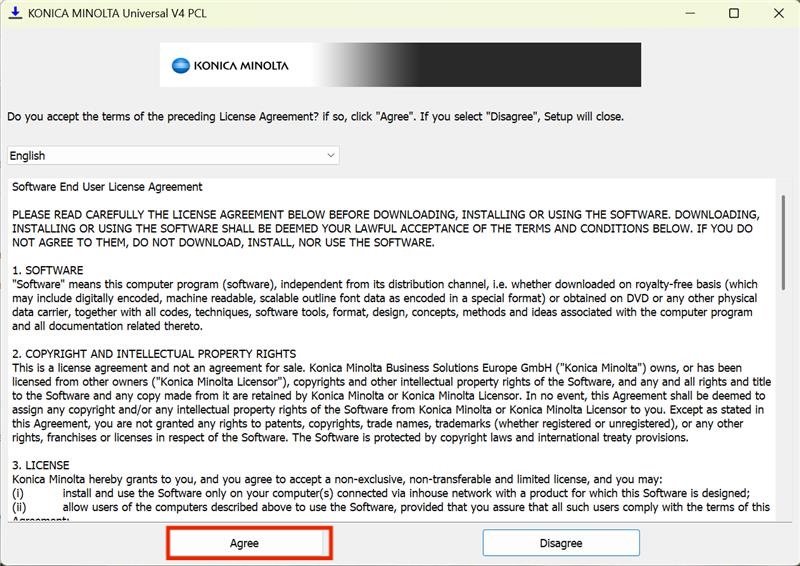
7. The driver installation window will then open. You will be prompted to accept the licensing terms. Click Agree
8. In the next window select Install(Manual Setting)

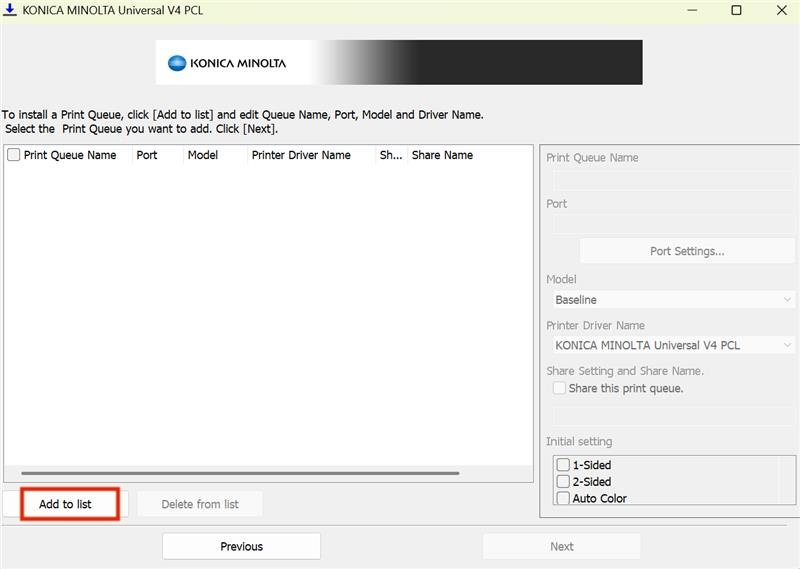
9. In the next window, you will need to add a printer to the list. Click Add to list
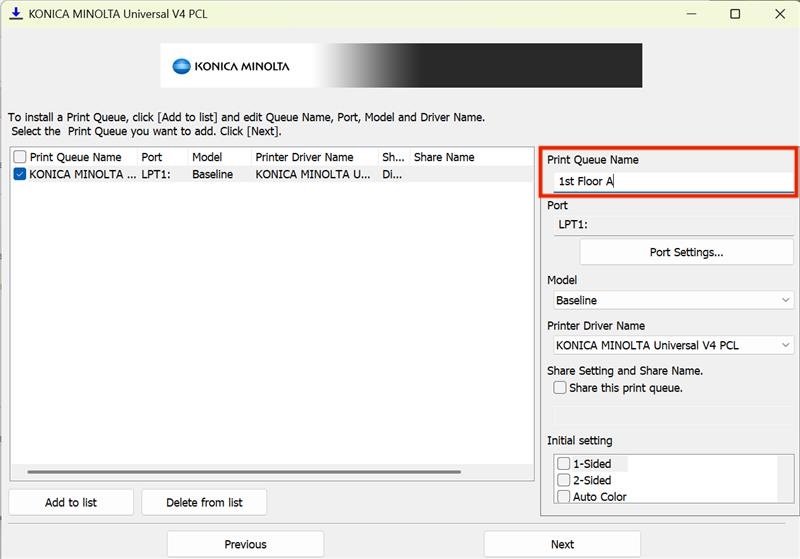
10. Rename Printer in Print Queue Name
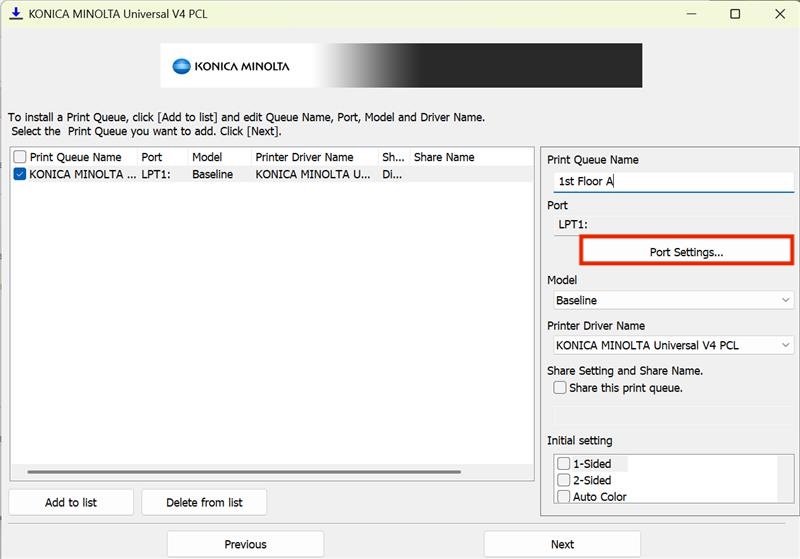
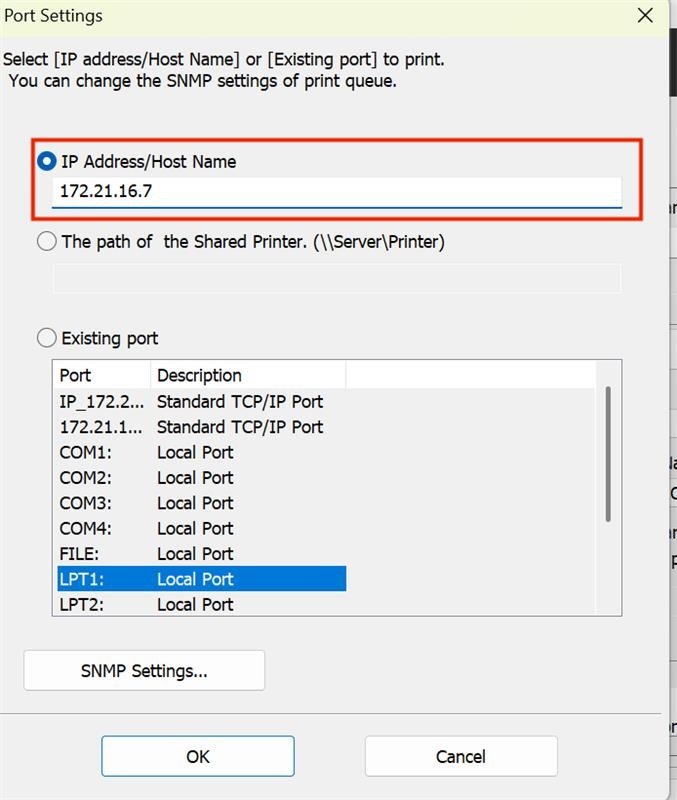
11. Click on Port Settings
12. Select the box titled IP Address/Host Name.
Enter the IP Address for the printer you wish to setup. (See table below.) Select OK.
IP address at top of page
(For this example, the 1st Floor A printer is being set up.)
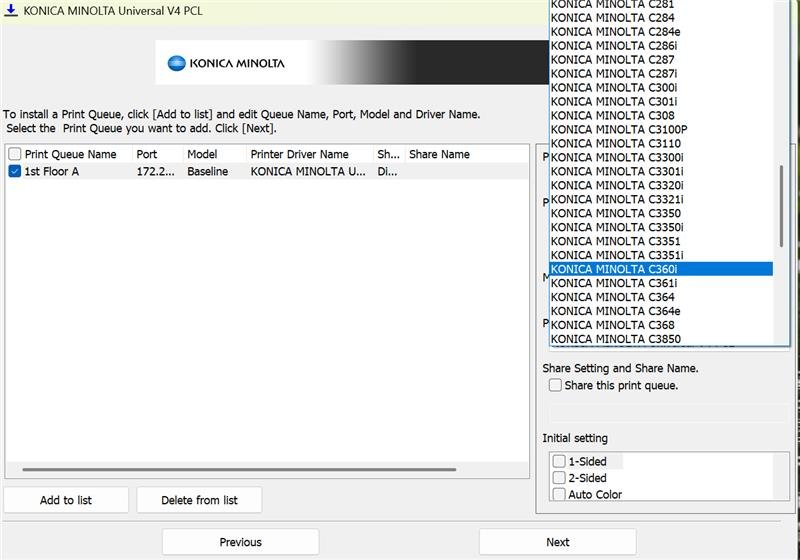
13. Under Model click on the drop-down menu
14. Make sure to select KONICA MINOLTA C300i for the model
-If you are connecting to 1st Floor A make sure to select KONICA MINOLTA C360i for the model
15. Click Next
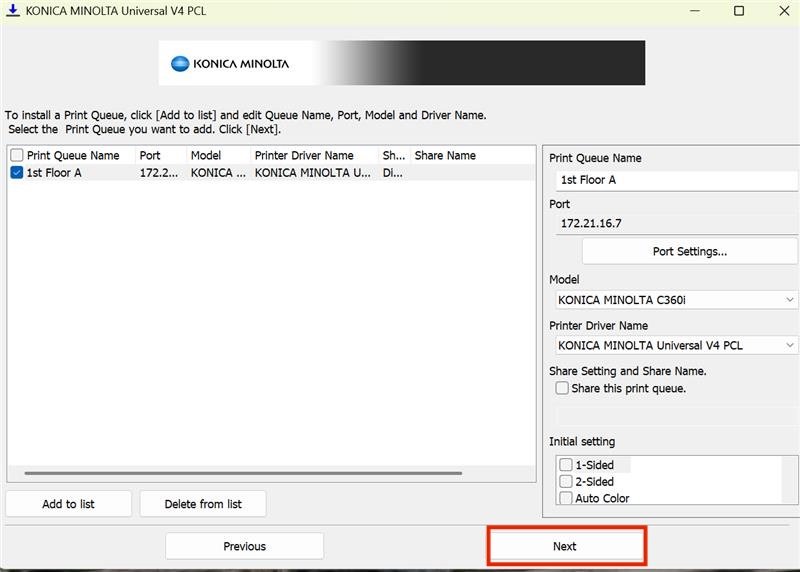
16. The next window will give you details about the printer you are installing.
Select Install.

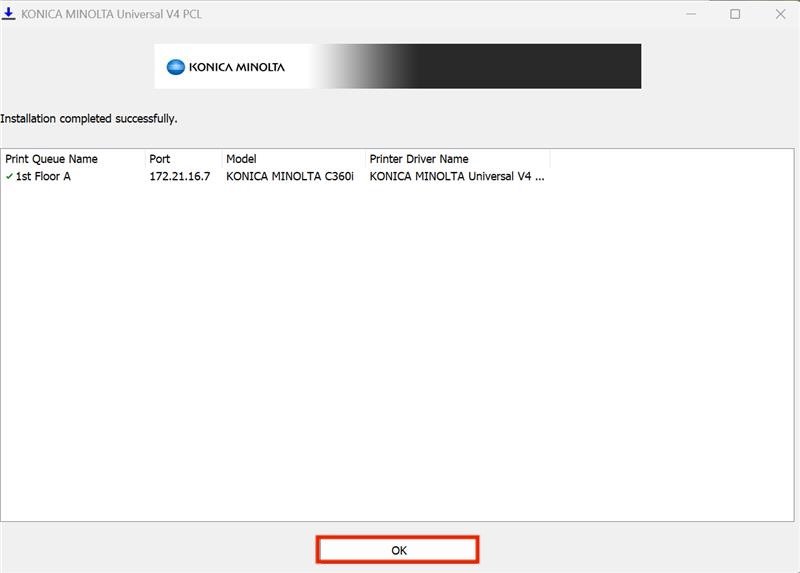
17. You will then receive a confirmation message that the printer driver has been installed successfully. Click Ok.
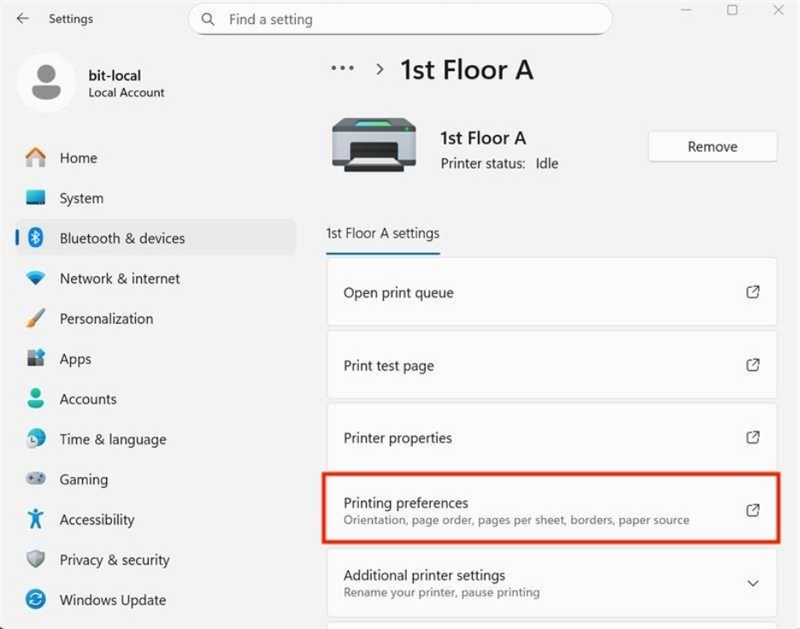
18. Go to Setting, Printers & Scanners and select the printer that you have just added. Then select Printer preferences
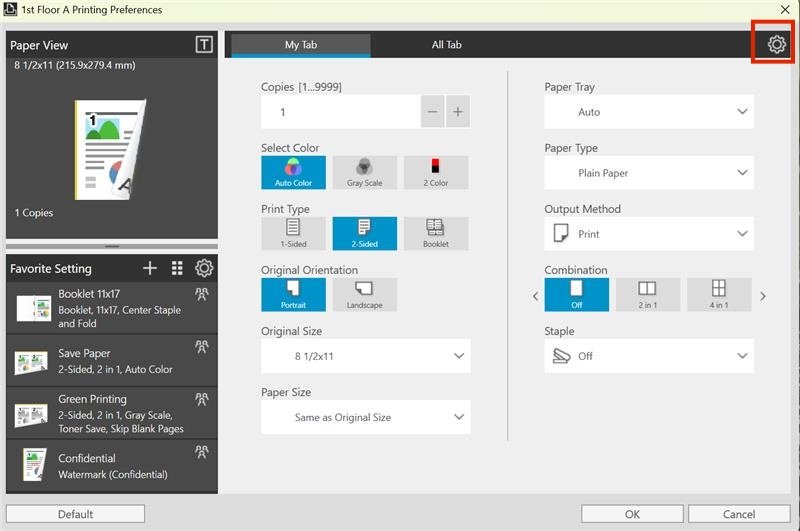
19. Select the Setting Wheel in the top left corner
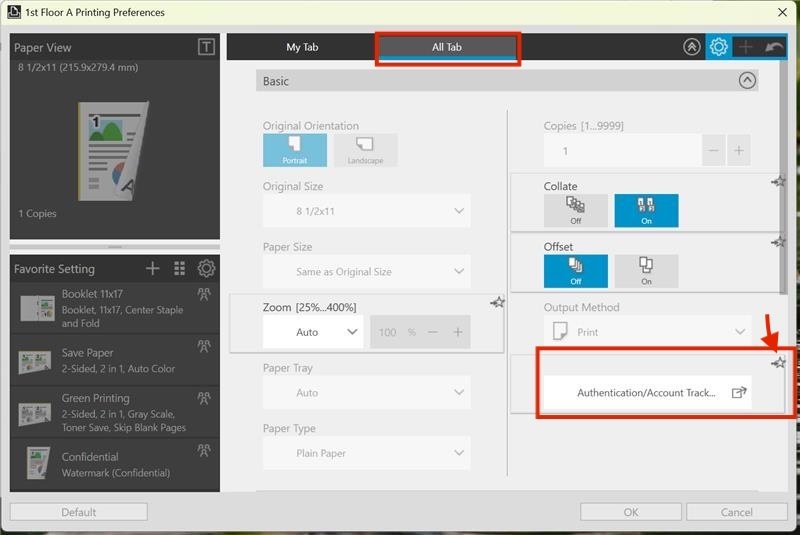
20. Go to All Tabs, under the Basic section. Hit the star in Authentication/Account track
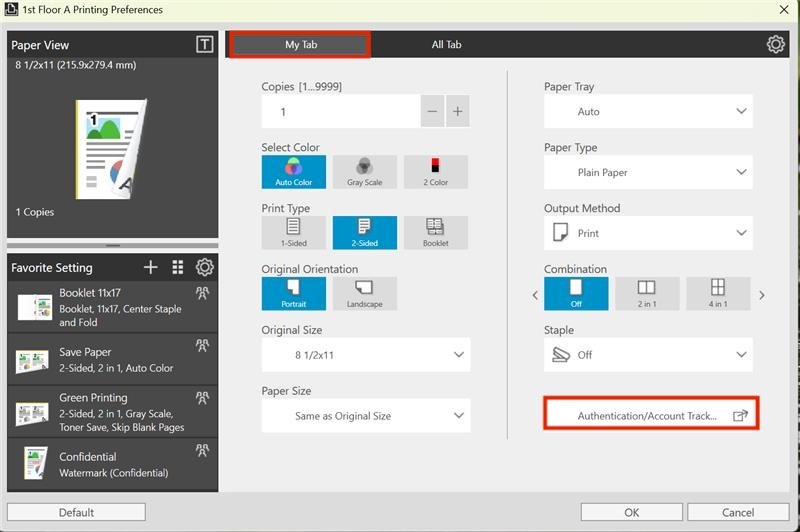
21. Click the setting wheel at the top and go back to My Tabs. You should see Authentication/Account Track. Click Authentication/Account Track
22. In the Account Track window, enter your assigned four digit copy/print code.
Enter the code in the Password field.
Select Verify.

23. If successful, you will see a window like the one below.
Select OK.
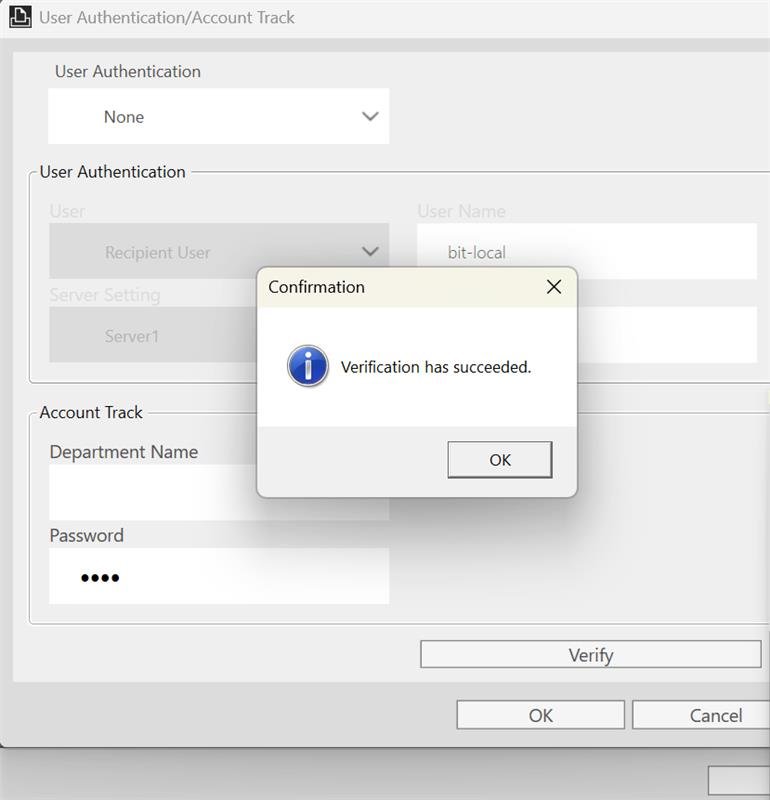
24. Click ok on all the windows that are open. The printer should be installed and ready to go.
Secure Print is a printing feature that holds a document in a protected digital queue instead of printing it immediately. The document is only released and printed once the user physically arrives at the printer and authenticates.
IMPORTANT: You will need your print/copy code for this procedure. If you do not know your print/copy code, please contact your PI or Angela Janacek.
NOTE: We are using Microsoft Word to serve as an example for this tutorial. You can utilize Secure Print from any application by accessing the Printer Properties from the print menu.
- Click File at the top of the document page.
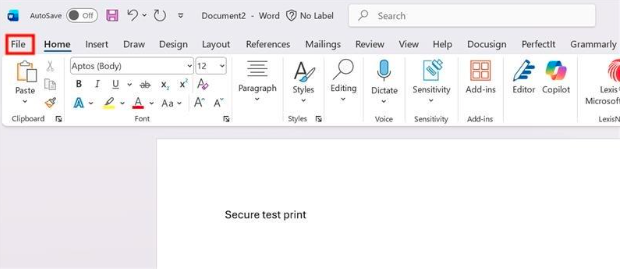
2. Select Print.

3. Make sure that the correct building printer is selected.
Select Printer Properties.
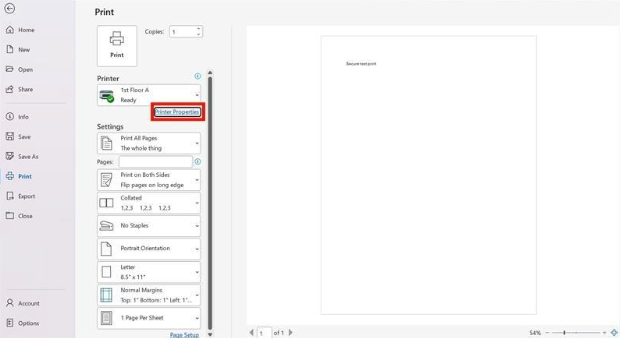
4. Printing Preference pop up windows find Output Method, select Secure Print from the dropdown menu.
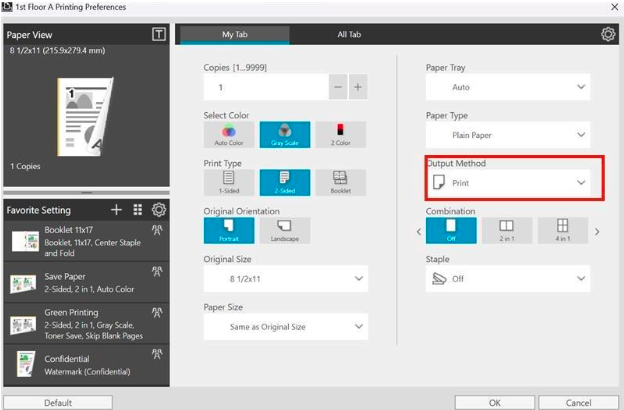

5. Select Secure Print...
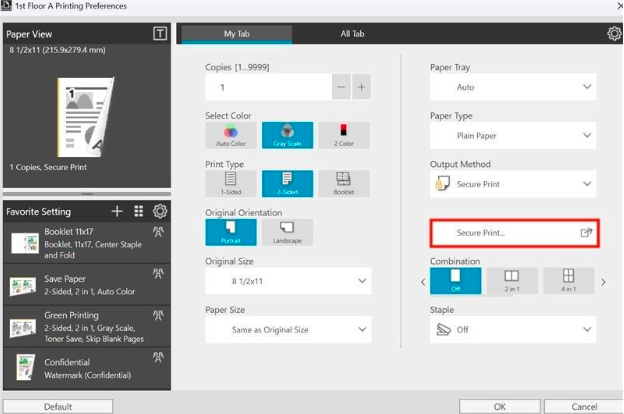
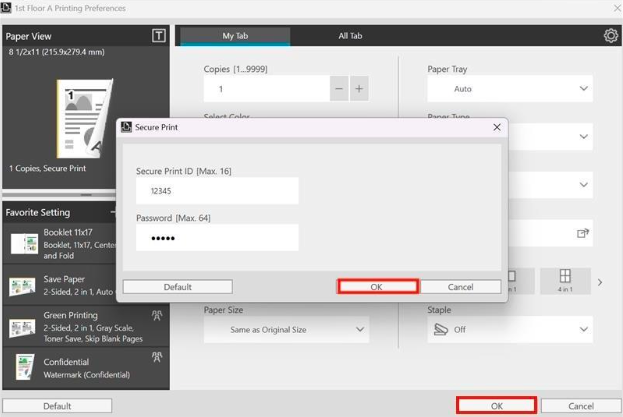
6. Choose a 5 digit code to use as the Secure Print ID (Document ID), it can be whatever you would like. Choose a password; it can be whatever you like.

7. Select OK and then select OK again
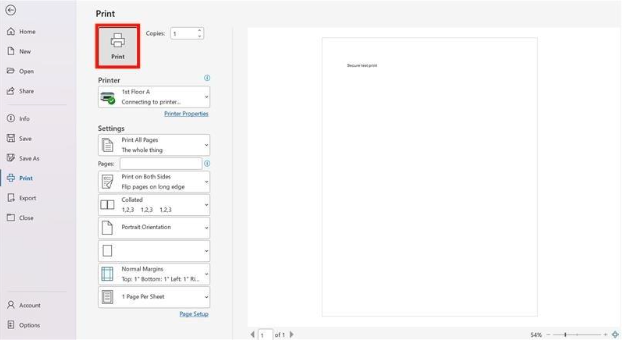
8. Once you are back on the Print options pictured below, ensure that the correct printer is still selected and Select the Print button above (with the icon of a printer) to print.
9. Now, head to the printer you were printing to.
Enter your JSCBB print/copy code.
If you do not know what your print/copy code is, please contact your PI or Angela Janacek

10. Hit the Home button.
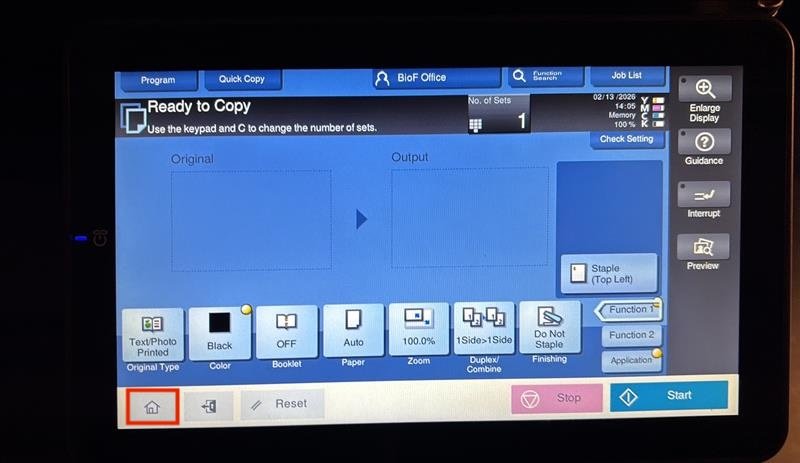
11. Select the option on the screen labeled User Box
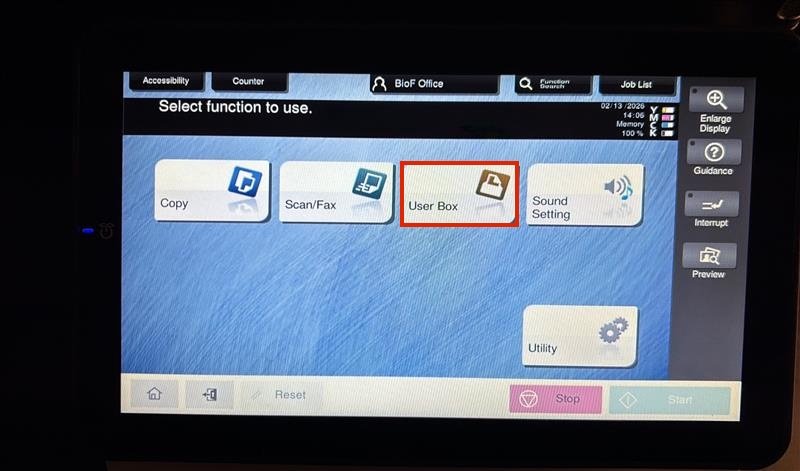
12. Select the option to the left of the screen labeled System
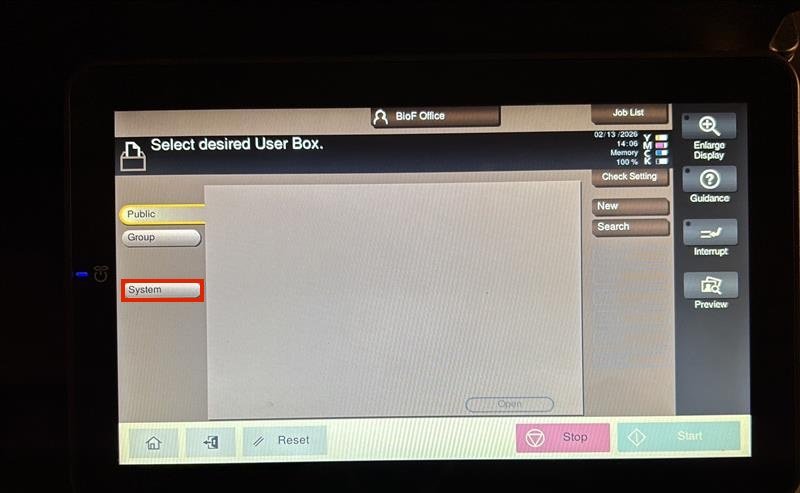
13. Select the Secure Print option.

14. Enter the 5 digit Document ID that you created in Step 6 (Secure Print ID) along with the Password that you chose. NOTE: Make sure to click on the word "Password" in order to enter any digits.
Then select OK
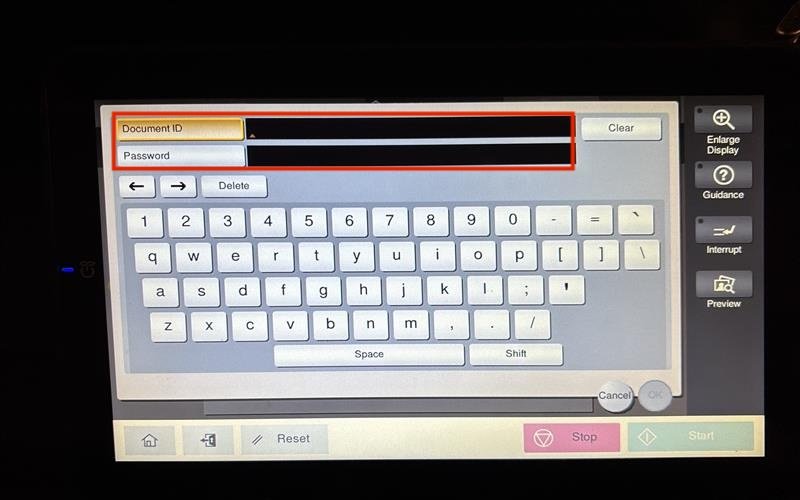

15. Select the document you would like to print or Select All and select Print.
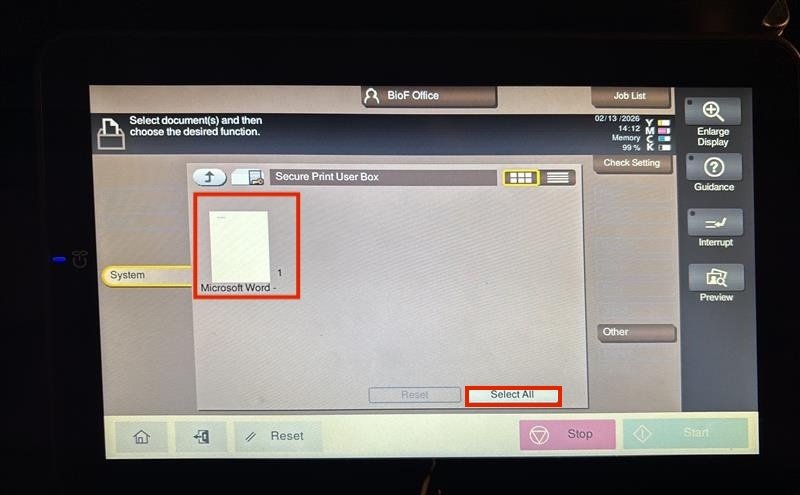

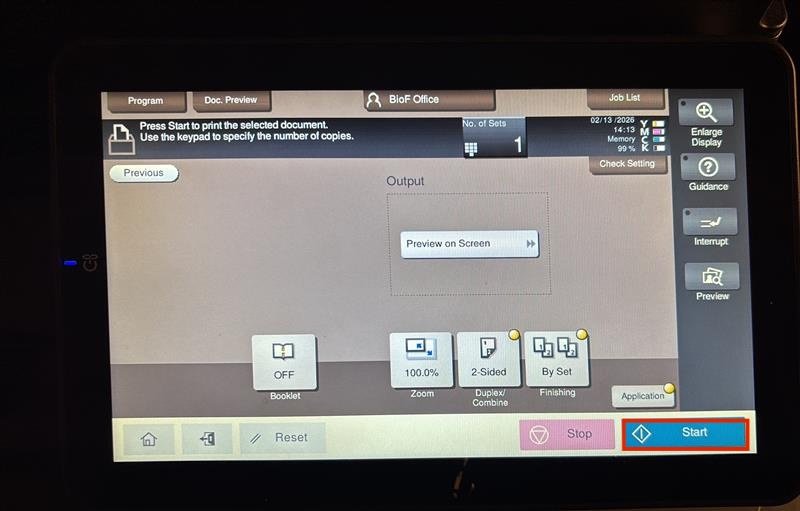
16. Hit the Start button and your document will now print